

Appearance
Videos & Media Overview
In FluentPlayer, every video you add is called a Media item. Think of it like a blog post, but instead of text content, it holds a video along with all its settings the source URL, poster image, subtitles, player controls, and more.
This section covers everything about creating and managing your video content.
What is a "Media" in FluentPlayer?
A Media item is the core building block of the plugin. It acts as a dedicated container for your video content and its associated data. Here is what you need to know:
- Custom Settings: Each Media item stores its own video source, poster image, and player behavior settings.
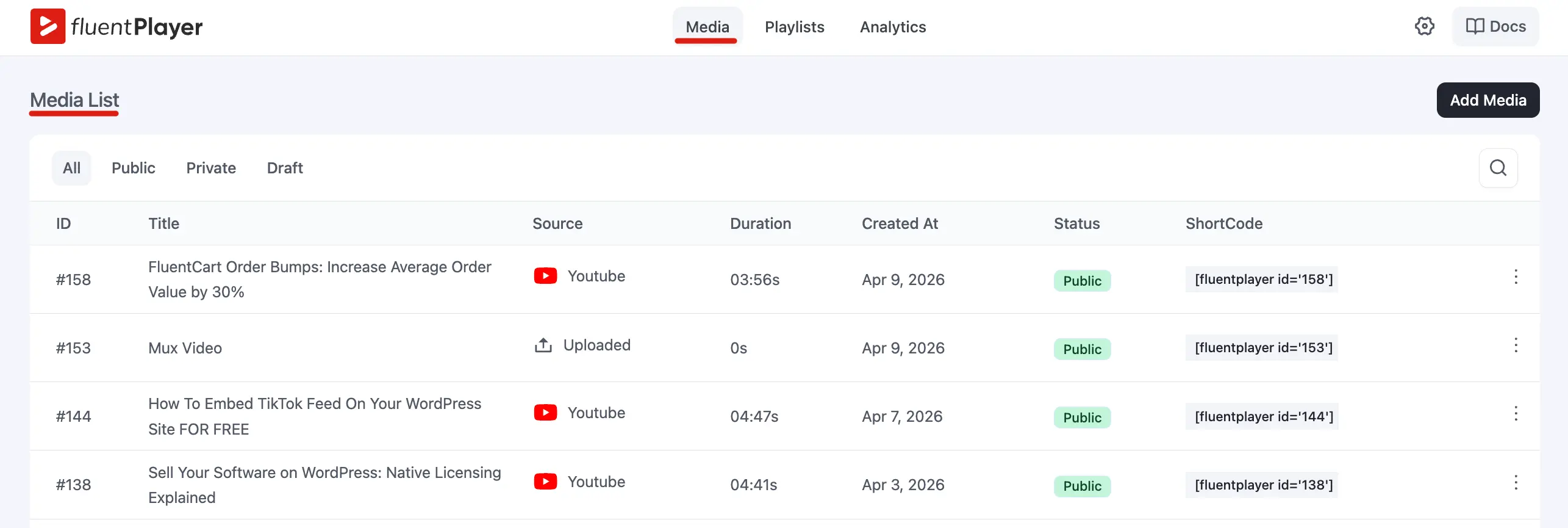
- Unique Identity (ID): Every video is assigned a unique Media ID (e.g., #105). You will use this ID to embed your video into pages or posts using shortcodes.
- Status Control: Media can be set to Published (live), Draft (in progress), or Private, giving you full control over visibility.
Managing Your Video Library
You can manage all your content from one central location. To access your library, navigate to FluentPlayer > Media in your WordPress dashboard.
From this screen, you can:
- Add New Media: Create a fresh video entry using the "Add Media" button.
- Edit Content: Update video sources, change presets, or add chapters to existing videos.
- Filter & Search: Quickly find specific videos using the status filters (All, Public, Draft), the provider (WordPress, YouTube, Vimeo, Mux, Bunny…), media type (audio or video), and tag filters, or the search bar.
- Delete Media: Remove content you no longer need.
Topics in This Section
| Topic | What you will learn |
|---|---|
| Adding and Editing Videos | How to create a new video and edit existing ones |
| Video Sources | The different ways to provide a video (upload, URL, YouTube, BunnyCDN) |
| Subtitles | How to add and remove subtitle tracks |
| Multiple Languages | How to offer the same video in different languages |
| Public vs Private Visibility | Who can see your video on the dedicated player URL |
| Media Tags (Pro) | Organize videos with tags for filtering and playlists |