

Appearance
Tag-Based Playlists (Pro)
A tag-based playlist is built automatically from your media tags instead of a hand-picked list of videos. You choose one or more tags, and the playlist shows every media item that carries them — so when you add a new video with that tag, it appears in the playlist automatically.
Pro feature
Tag-based playlists require FluentPlayer Pro.
When to use it
- A growing series where you add new episodes over time — tag each new video and it joins the playlist automatically.
- A topic hub that should always show everything tagged
tutorial(or any tag you choose). - Anywhere you would otherwise have to edit a playlist by hand every time you publish a video.
Option 1: Shortcode
Add the [fluentplaylist] shortcode with a tags attribute to any post or page:
text
[fluentplaylist tags="tutorial"]Combine multiple tags with commas:
text
[fluentplaylist tags="tutorial,getting-started"]The playlist renders every media item that matches the tag(s), using your configured playlist layout and appearance.
TIP
A regular playlist uses [fluentplaylist id="10"]. A tag-based playlist uses tags="…" instead of id. See Embed a Playlist for the standard form.
Option 2: Playlist block
- In the block editor, add the FluentPlayer Playlist block.
- Click the By Tags button (next to New Playlist).
- In the Tags field that appears, type in the Add a tag… box and add one or more tags.
- Publish or update.
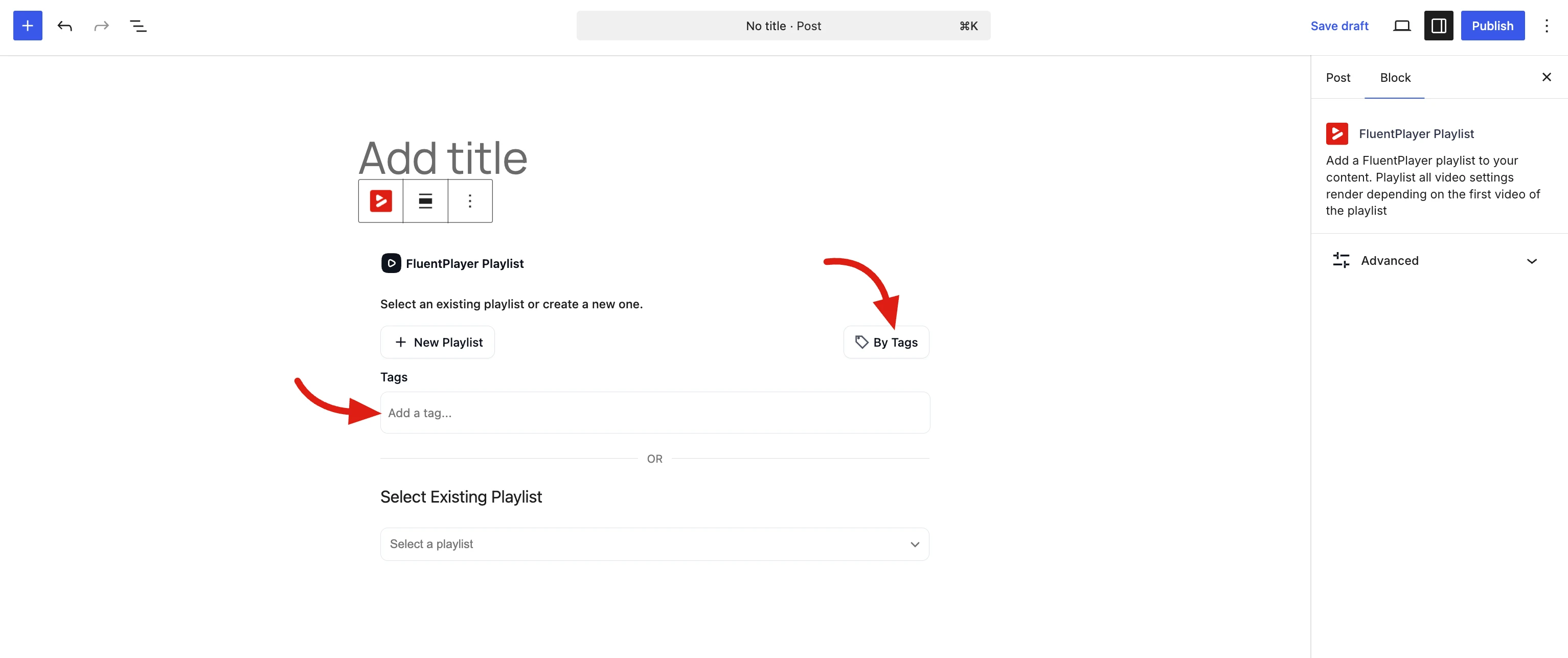
The block renders the same dynamic, tag-driven playlist as the shortcode. To use a fixed, hand-picked playlist instead, choose New Playlist or pick one from Select Existing Playlist.
Good to know
- Only tagged media appears — tag your videos first.
- Because the list is dynamic, the playlist updates as you tag or untag videos; there is no fixed order to maintain by hand.