

Appearance
Analytics Settings
Welcome to the Analytics settings! If you have ever wondered who is watching your videos, how long they stay, and exactly when they stop watching, this is where you turn those insights on.
We give you two powerful ways to track your video engagement side-by-side: our beautifully detailed, built-in FluentPlayer Analytics and a seamless integration with Google Analytics.
Setting Up FluentPlayer Analytics (Pro)
Our built-in analytics are like having a private command center right inside your WordPress dashboard. You do not need to log into any external websites to see how your videos are performing. Once you turn this on, a brand new Analytics menu will appear under FluentPlayer in your WordPress sidebar.
How to activate your native tracking:
- Navigate to FluentPlayer -> Settings -> Analytics.
- Click on the FluentPlayer Analytics tab.
- Toggle Enable Analytics to the ON position. This tells your website to instantly start recording viewer data!
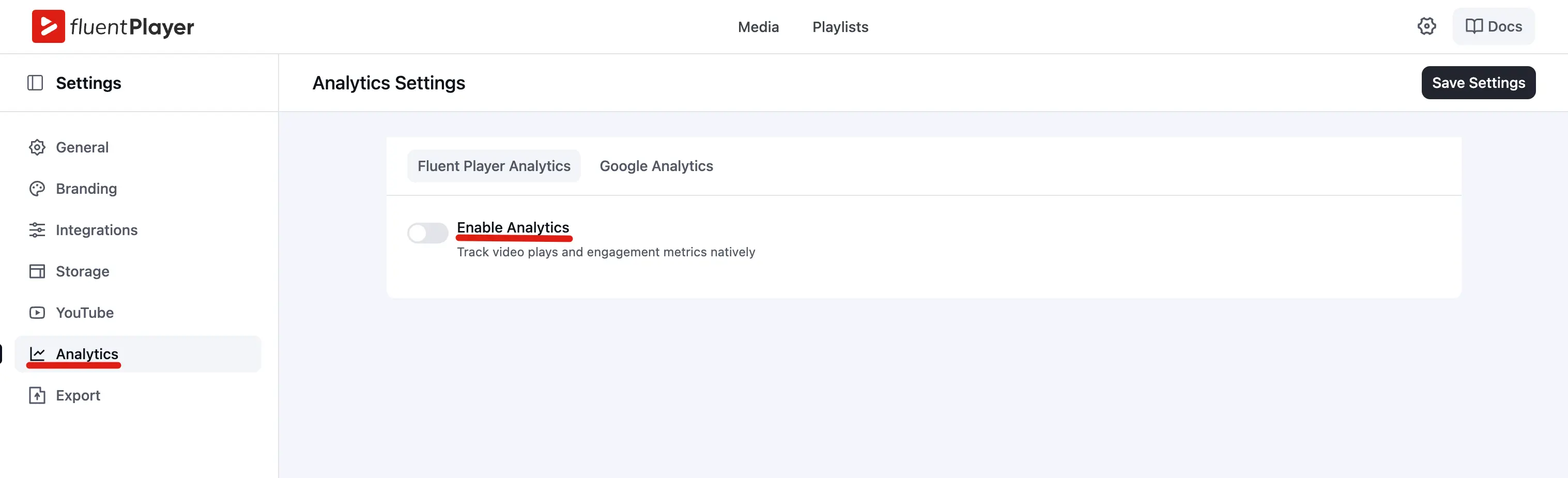
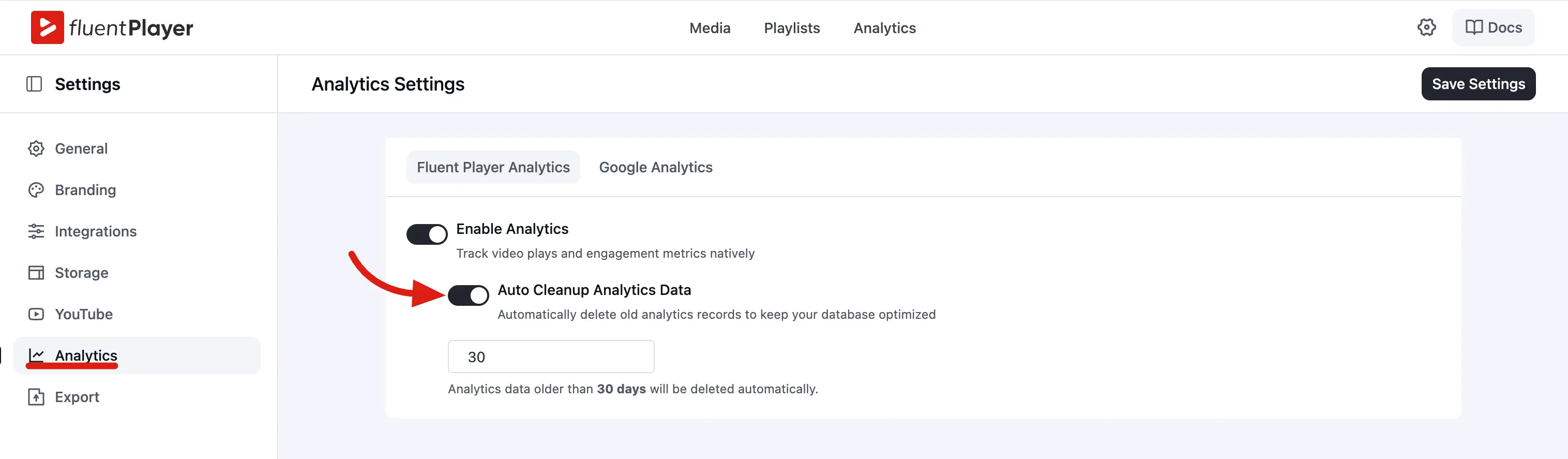
- We highly recommend toggling on Auto Cleanup Analytics Data. Video tracking can create a lot of data over time, and this keeps your database fast and healthy.
- If you enable auto cleanup, enter a number in the Retention (days) box. For example, typing
30means we will automatically delete stats that are older than a month. - Click Save Settings.
What Exactly Do We Track for You?
Once activated, we silently and securely record:
- Plays: How many times a viewer clicked play.
- Watch time: The total amount of hours or minutes people spent watching.
- Progress milestones: We track when viewers hit the 25%, 50%, 75%, and 100% marks of your video.
- Top videos & users: Easily see your most popular content and your most engaged logged in viewers.
- Retention graphs: A beautiful chart showing exactly where viewers lose interest and drop off.
- Geographic location: See what countries your audience is watching from.
🔍 Example: To keep your media library as tidy as your database, FluentPlayer also runs a quiet daily background task that cleans up "auto draft" media items you never finished creating!
Connecting Google Analytics (Pro)
Do you already use Google Analytics 4 (GA4) to track your website traffic? You can send your video events straight to Google!
Pro feature
Sending FluentPlayer video events to GA4 requires FluentPlayer Pro. Your GA4 account is free, but the integration only fires events when Pro is active.
Events We Send to Google:
Whenever someone watches a video, we tell Google exactly which video it is (by sending the video ID and title) and trigger an event when they:
- Play the video.
- Reach a Progress milestone (25%, 50%, 75%, 100%).
- Complete the video.
How to Set Up Google Analytics
Open Fluent Player → Settings → Analytics, then select the Google Analytics tab. Choose the setup path that matches how GA4 is already installed on your site.
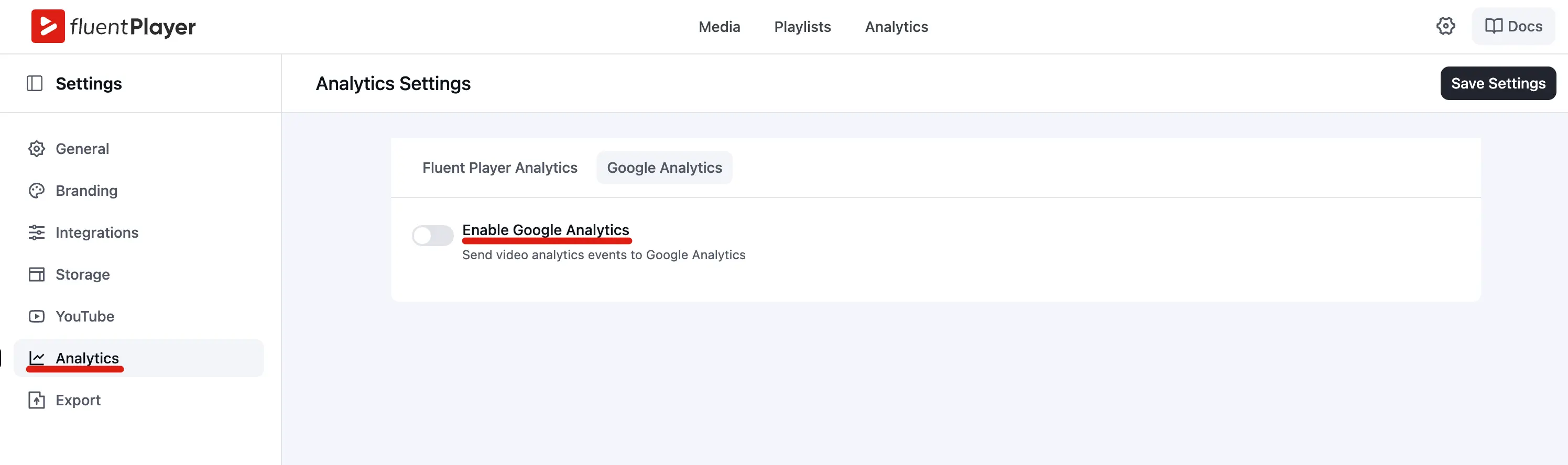
- Navigate to FluentPlayer -> Settings -> Analytics.
- Click the Google Analytics tab.
- Toggle on Enable Google Analytics.
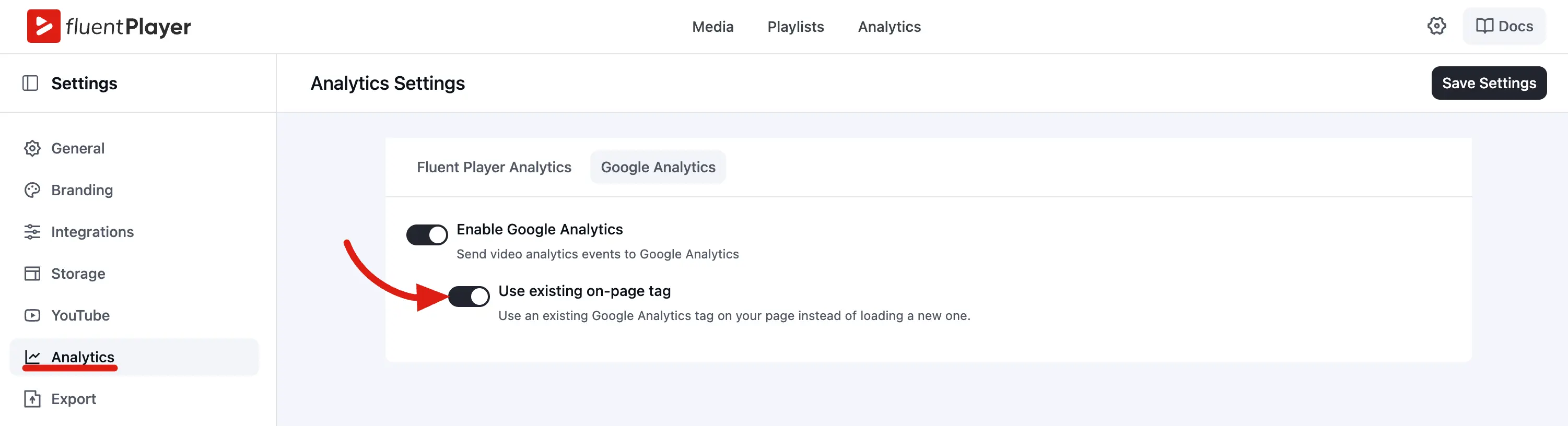
- Turn on Use existing on page tag.
- Click Save Settings.
Load GA4 through Fluent Player
- First, grab your GA4 web stream measurement ID from your Google Analytics account (under Admin -> Data streams). It will look something like
G-XXXXXXXXXX. - Navigate to FluentPlayer -> Settings -> Analytics.
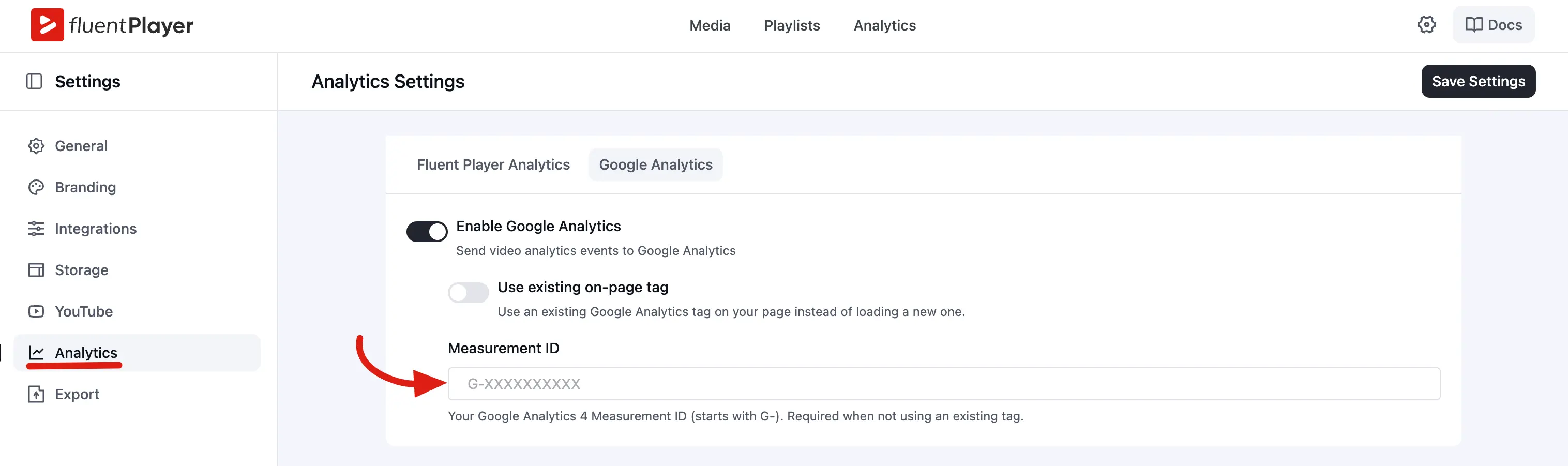
- Click the Google Analytics tab and toggle on Enable Google Analytics.
- Make sure Use existing on-page tag is turned OFF.
- Paste your Measurement ID into the box that appears.
- Click Save Settings.
Troubleshooting Google Analytics data
Standard GA4 reports can take up to 24 hours to show new event data. To verify tracking right away, open Reports → Realtime in your Google Analytics dashboard and play a video on your site while watching for Fluent Player events.
Built-in Analytics vs Google Analytics
You can run both at the same time. Use built in analytics for day to day video performance inside WordPress, and Google Analytics to see how video engagement fits your wider marketing and site traffic.
| Feature | Built in Analytics (Pro) | Google Analytics (Pro) |
|---|---|---|
| Where do you view the data? | Inside your WordPress admin | In the Google Analytics dashboard |
| Per video drop off charts | Yes | No, not without custom setup |
| Logged in user tracking | Yes — see who watched what | Limited — mostly anonymous sessions |
| Best for | Deep video and audience analysis | Marketing funnels and site wide traffic |