

Appearance
Text & Button Overlays (Pro)
Text & Button Overlays are timed interactive elements that appear directly on top of your video. They are perfect for highlighting key points, providing resource links, or adding calls to action (CTAs) without pausing the video.
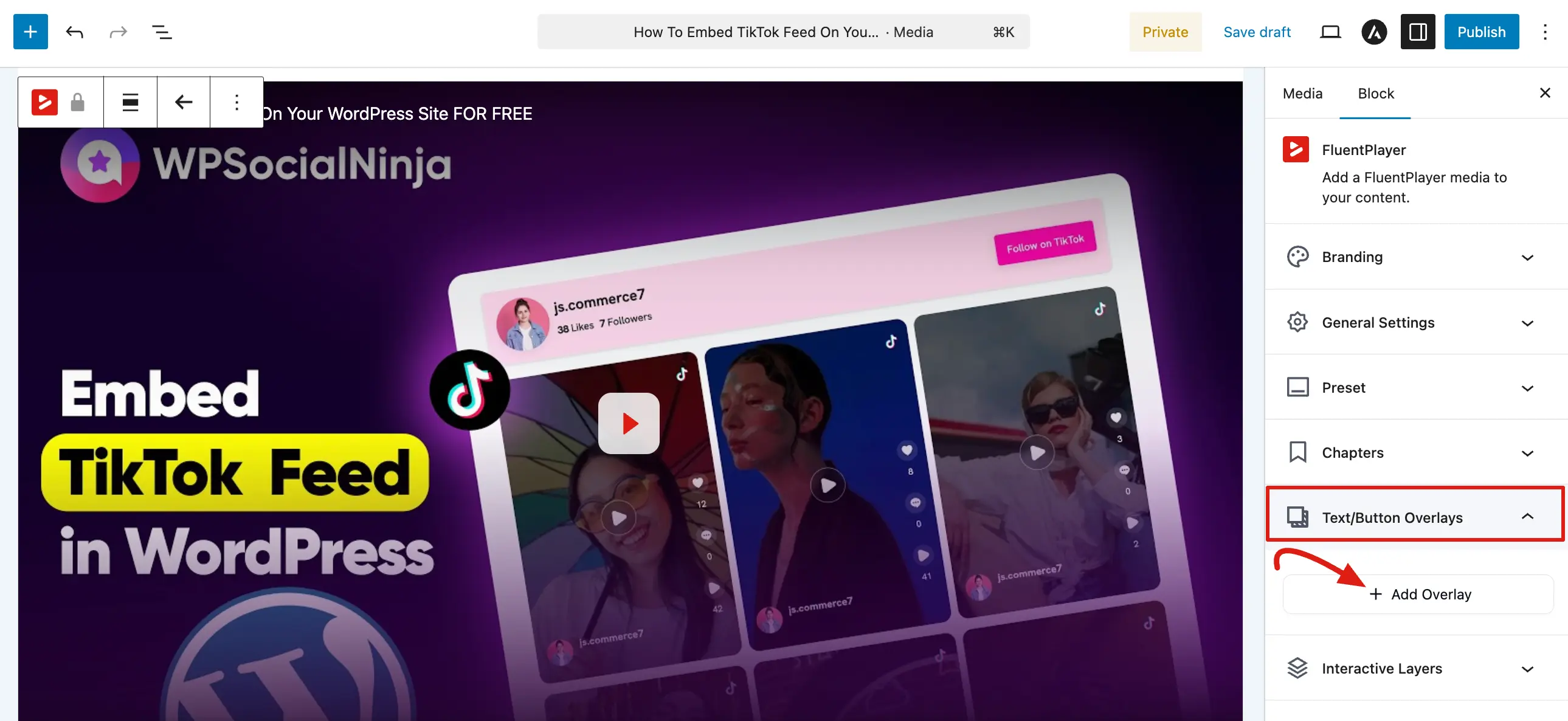
To manage your overlays, select the FluentPlayer block and open the Text/Button Overlays panel under the Block tab in the right sidebar.
Adding an Overlay
Click the + Add Overlay button to open the Add Video Overlay configuration window. The settings are organized into collapsible accordion sections:
Pro feature
Text & Button Overlays require FluentPlayer Pro. The Text/Button Overlays panel is available only when Pro is active; with the free plugin the panel is not available.
Display Section:
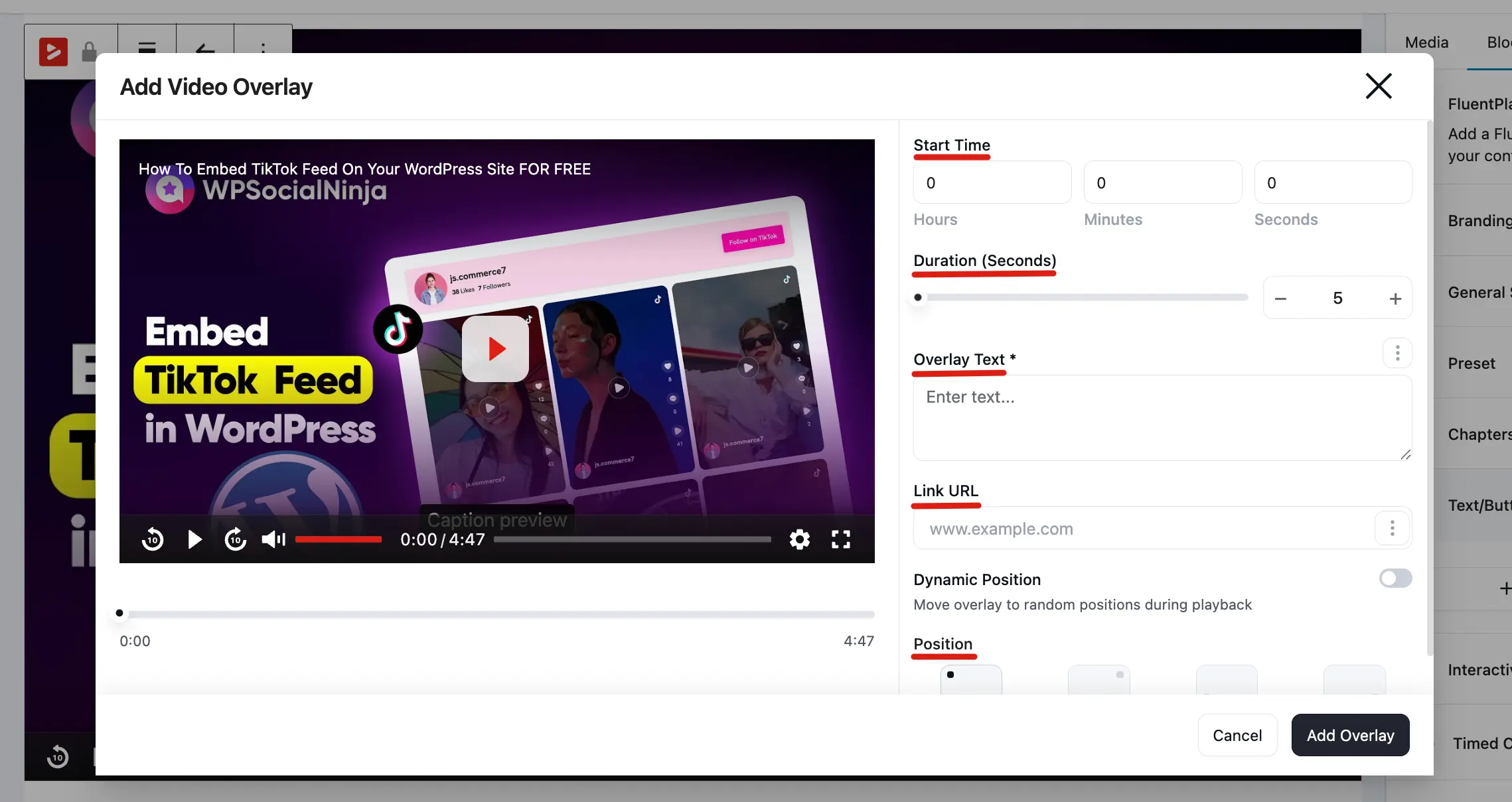
- Start Time: Enter the exact hour, minute, and second when the overlay should appear on the screen.
- Duration (Seconds): Use the slider, click the plus/minus buttons, or type in the input box to set how many seconds the overlay stays visible.
Content Section:
- Overlay Text: Click the accordion to expand and enter your custom message in the text field. You can also use the three dot menu icon to insert dynamic Smartcodes.
- Link URL: Paste a website link if you want your overlay text or button to be clickable.
- Layout Section:
- Fixed Position: Choose a static location for the overlay on the video frame, such as Top Left.
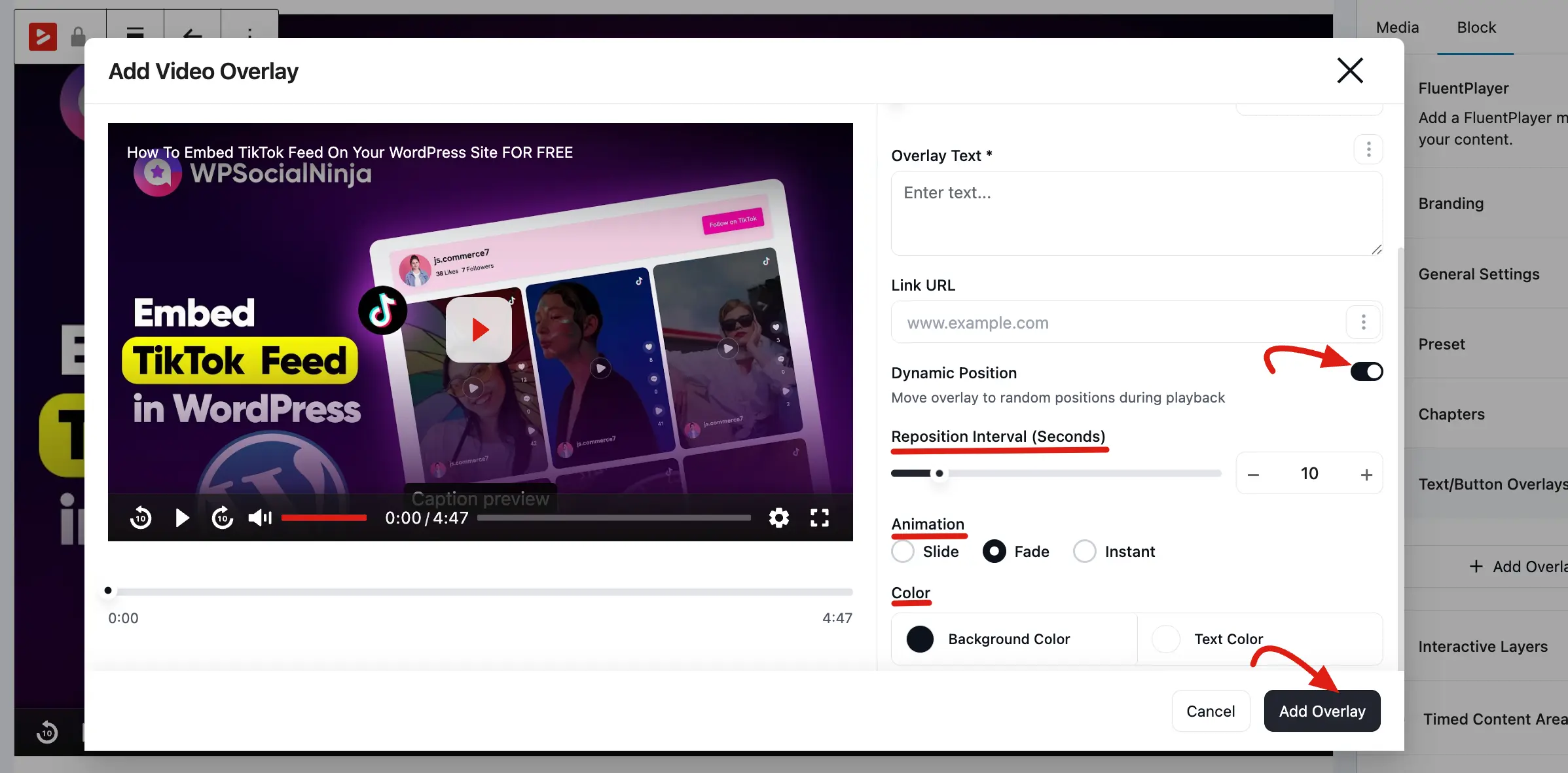
- Dynamic Position: Toggle this switch on to move the overlay to random positions automatically during playback.
- Reposition Interval (Seconds): Use the slider or input options to set how often (in seconds) the overlay changes its location.
- Animation: Select your preferred transition style for how the text enters and exits the screen, choosing between Slide, Fade, or Instant.
- Appearance Section:
- Overlay Color: Choose your custom styling by selecting the Background and Text color circles to open the color picker and ensure maximum readability.
Once you have finished configuring all your options, click the Add Overlay button to save.
Managing Your Overlays
Once saved, your overlays will appear in an organized list within the right sidebar panel:
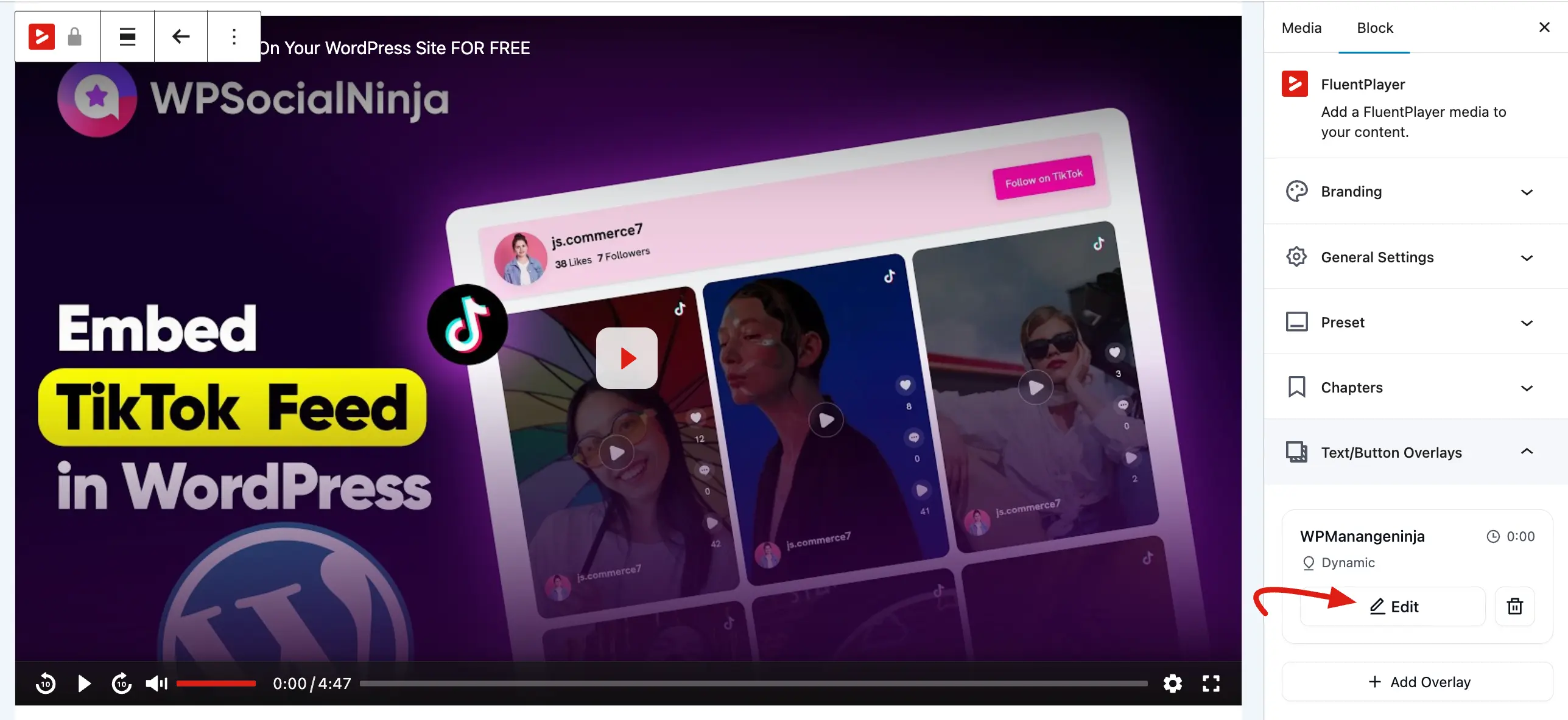
- Edit: Click the Edit icon on any existing overlay item to reopen the configuration window and modify its timing, text, layout, or styling.
- Delete: To completely remove an overlay, click the Trash icon next to the item and confirm your choice in the modal popup.
Important Notes
- Always look at the built in Video Preview on the left side of the window to scrub through your timeline and check your overlay design before saving.
- Use dynamic repositioning cautiously; moving text quickly can sometimes distract viewers from the actual video content.
By combining custom colors, crisp animations, and dynamic positioning, the Text & Button Overlays panel gives you full creative control to drive engagement and interactive behaviors directly inside your media layouts.
Related pages
- Interactive Layers — clickable forms, CTAs, and hotspots (vs. these static overlays)
- CTA and Action Bar — persistent call-to-action buttons