

Appearance
Branding (Block sidebar)
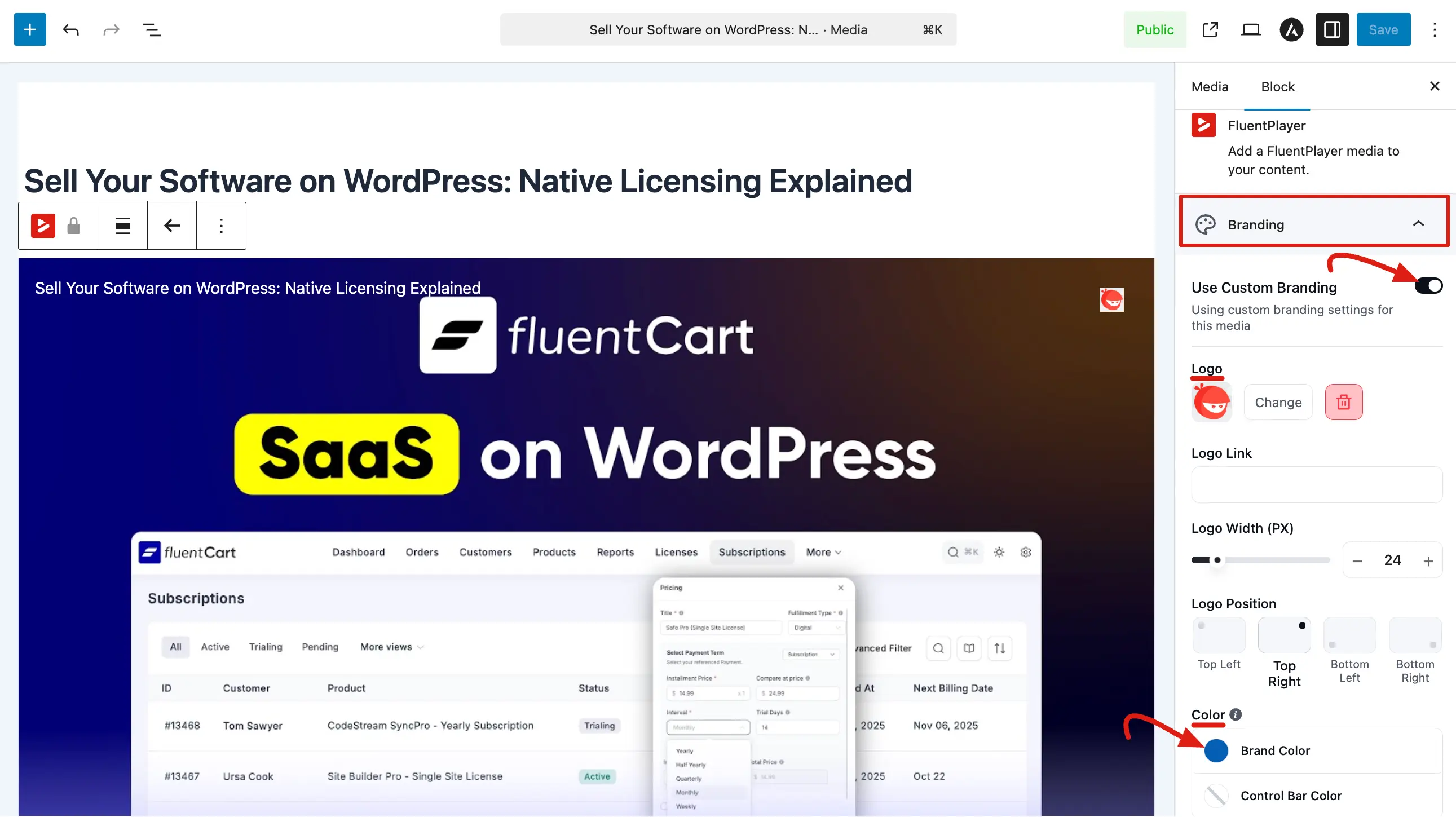
The Branding panel allows you to personalize your video player with your own logo and custom color scheme. You can use this section to ensure a single video matches a specific marketing campaign or brand identity, even if it differs from your global site settings.
To access these options, select your FluentPlayer block and open the Branding section under the Block tab in the right hand sidebar.
Use Custom Branding
By default, FluentPlayer uses the global branding settings configured in your plugin's main settings.
- Toggle Switch: Enable Use Custom Branding to override the global settings for this specific video.
- Purpose: Turn this on when you need a unique logo or specific colors for a single media item or embed.
Logo Settings
Once custom branding is enabled, you can add a watermark or brand logo directly to the player interface.
- Logo Upload: Click Upload or Change to select an image (such as a transparent PNG) from your media library.
- Logo Link: You can add a URL to the Logo Link field so that viewers are taken to a specific page when they click your logo.
- Logo Width (PX): Use the slider or input box to precisely adjust the size of your logo.
- Logo Position: Choose exactly where the logo appears on the player: Top Left, Top Right, Bottom Left, or Bottom Right.
Color Customization
You can fine tune the player's colors to create a cohesive look for your content.
- Brand Color: This controls the accent color used for the progress bar and other highlights.
- Control Bar Color: Adjust the background color of the bottom control bar to be solid or semi transparent.
- Color Picker: Click the color circles to open a palette where you can select a preset color or enter a custom hex code.
The Branding panel provides the flexibility to make every video feel unique. Whether you are adding a simple watermark or completely changing the player's color scheme, these settings allow you to maintain brand consistency across all your video content.
Related pages
- Global Branding — set the site-wide defaults this panel overrides
- Preset — bundle branding with a reusable player skin