

Appearance
Presets
A preset is a saved player configuration that you can apply to any media item. It defines the player's skin, controls, behaviors, and overlay settings all in one package. Instead of configuring each video from scratch, you pick a preset and the video inherits those settings.
Why use presets?
- Consistency: All your videos look and behave the same.
- Speed: Configure once, apply to many videos.
- Flexibility: Override specific settings per media when you need a different look.
Built in presets
FluentPlayer ships with seven built-in presets — six are available in the free plugin, and the Ambient preset requires FluentPlayer Pro. Each has a slug (used in settings and the database) and a display name (what you see in the UI). These slugs are reserved: even on Pro, you cannot delete a built-in preset (you can still add your own custom presets).
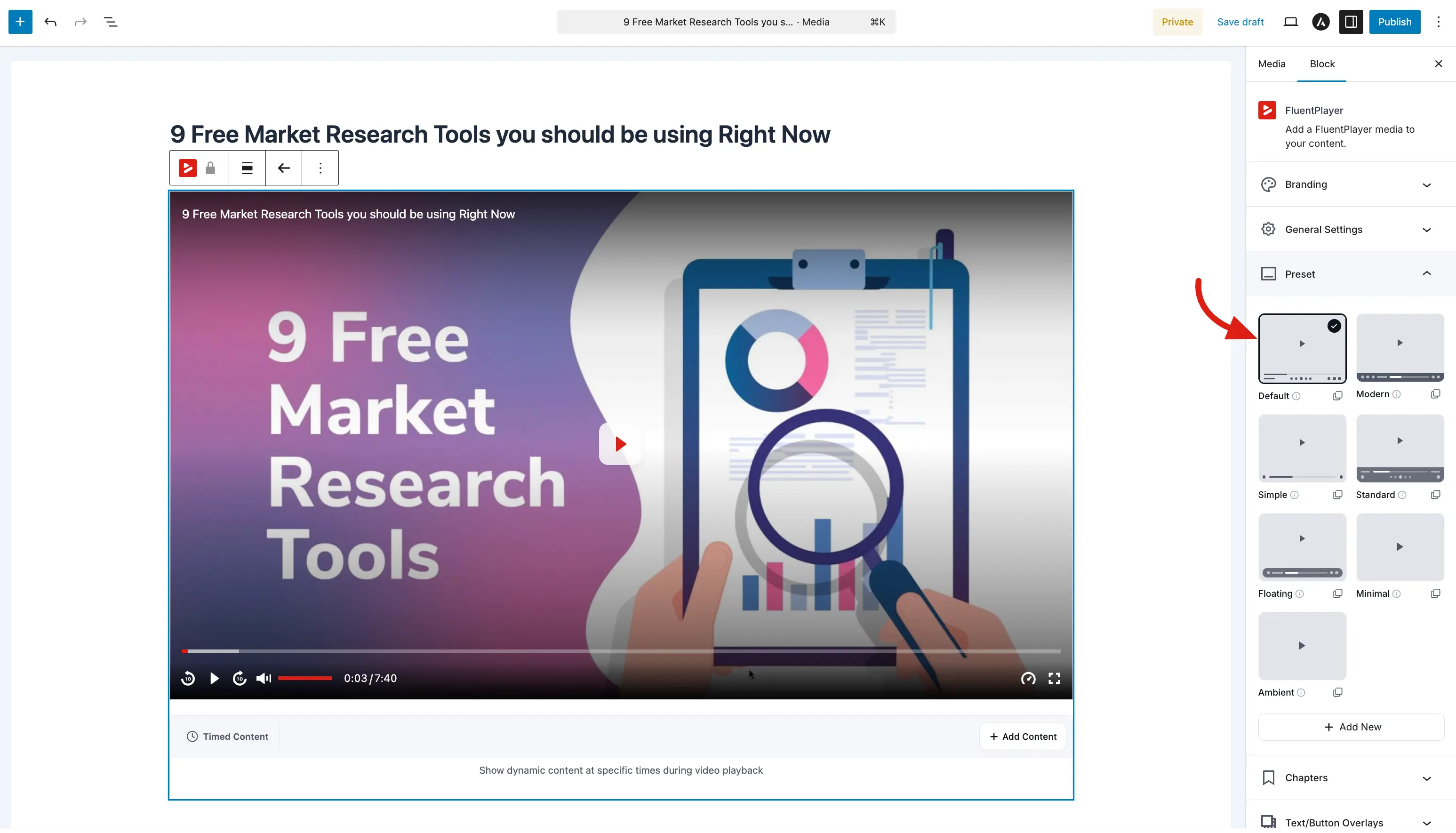
Default (default)
- Skin: Classic
- Controls: Full set: backward/forward, play, progress, time, volume, playback speed, fullscreen, PIP, center play, captions, chapters.
- Settings menu: Off (speed is available as its own control; quality appears as its own control for HLS when applicable; see Creating Custom Presets).
- Best for: General purpose videos where viewers need every control, including chapters.
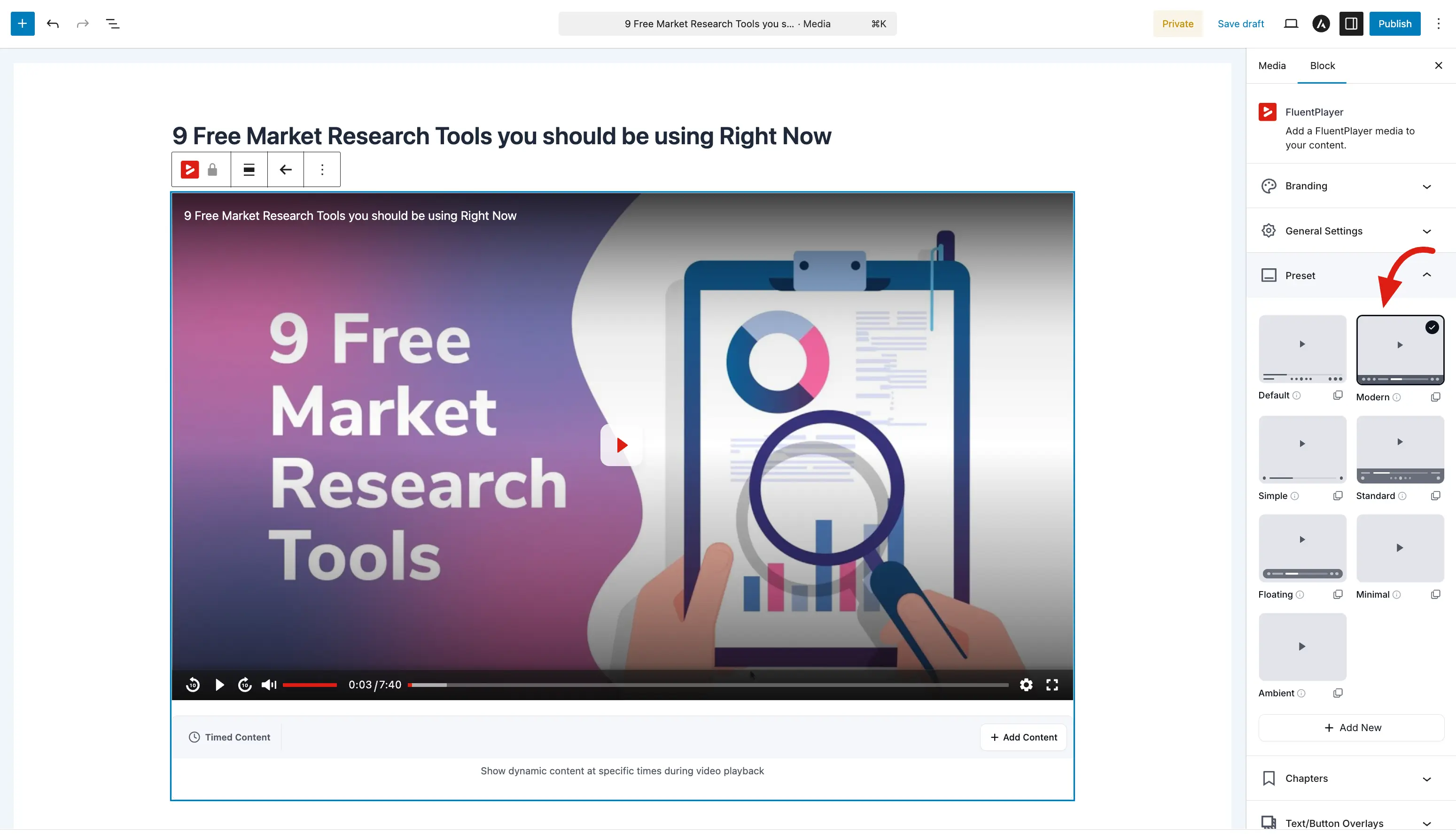
Modern (course)
- Skin: Modern
- Controls: Full bar with settings menu; playback speed is folded into settings (not a duplicate control).
- Behaviors: Save play position is enabled in the default preset data (together with resume playback at the site level when using Pro).
- Best for: Courses, polished marketing pages. This is the default preset for new installs (
course).
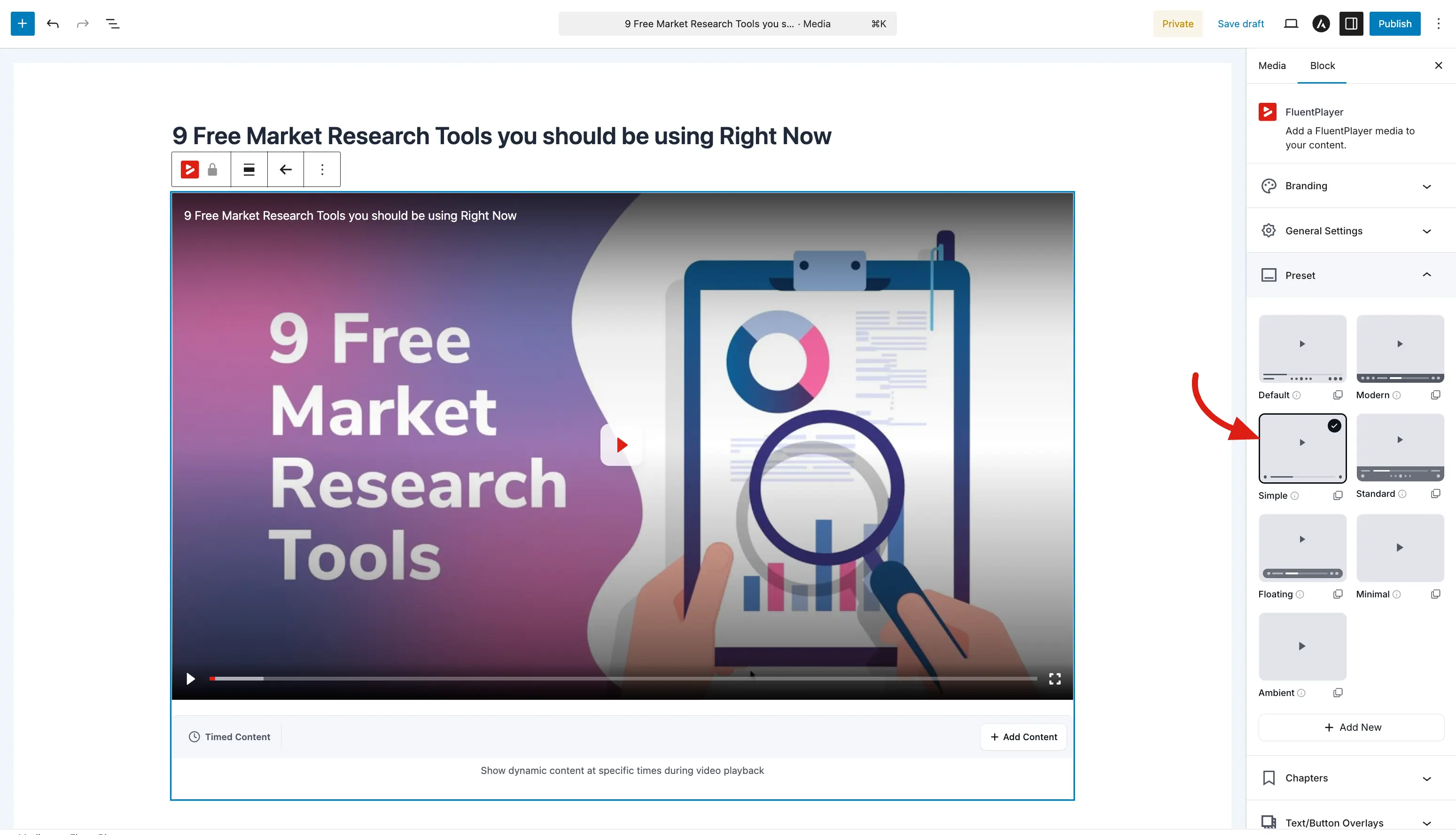
Simple (simple)
- Skin: Simple
- Controls: Play, progress bar, fullscreen, center play. Volume control is off in default data for a minimal chrome.
- Best for: Clean pages where viewers only need play/seek and fullscreen.
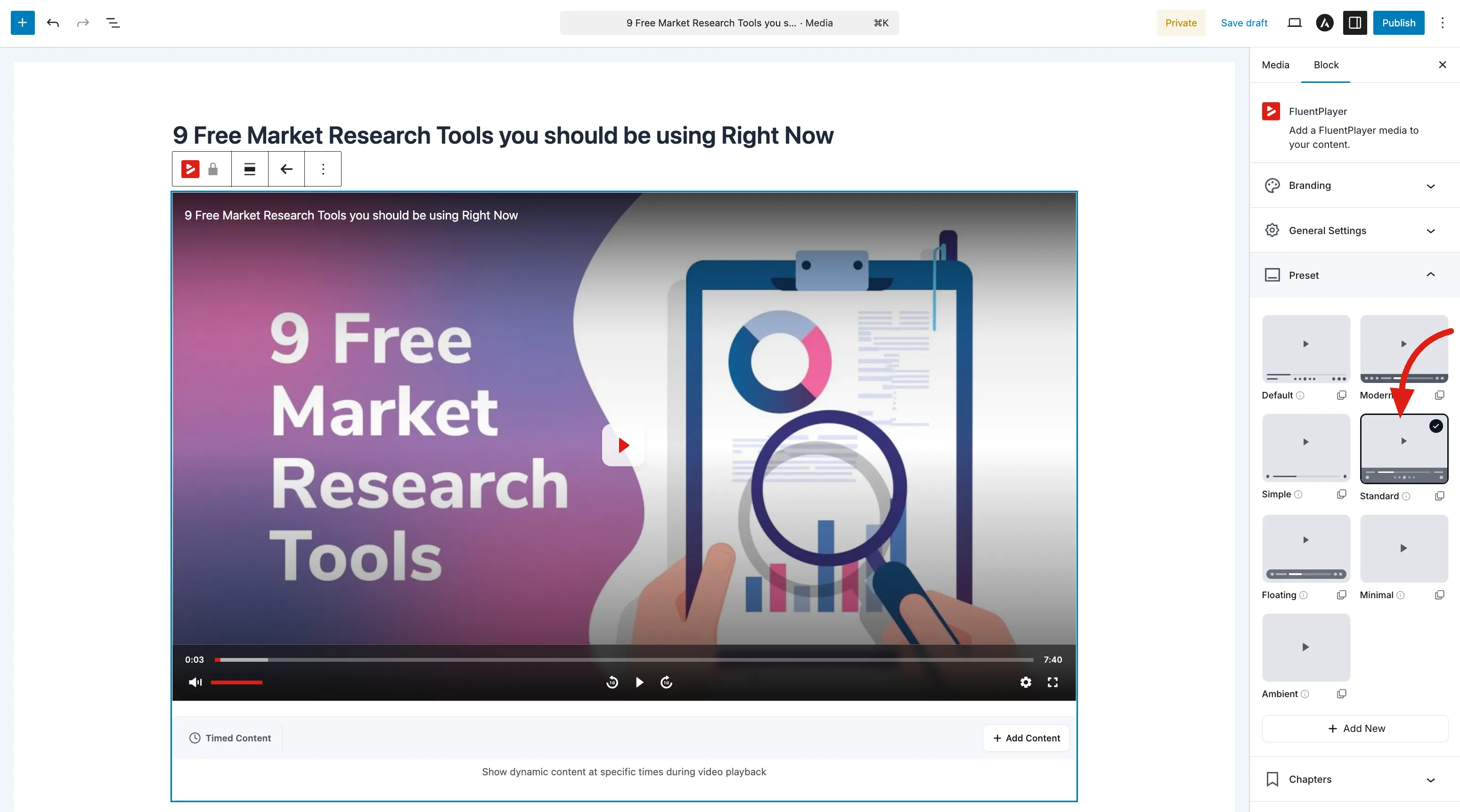
Standard (standard)
- Skin: Standard
- Layout detail: Standard uses a two row control layout: the progress bar sits on the top row (with current time and duration), and the bottom row holds playback controls in three columns: volume on the left, backward / play / forward in the center, and utility buttons (settings, fullscreen, etc.) on the right.
- Controls: Similar to Modern plus chapters; save play position on in default data; control bar blur can be enabled for a frosted glass bar.
- Best for: Layouts that use the “classic top + bottom” style with chapters.
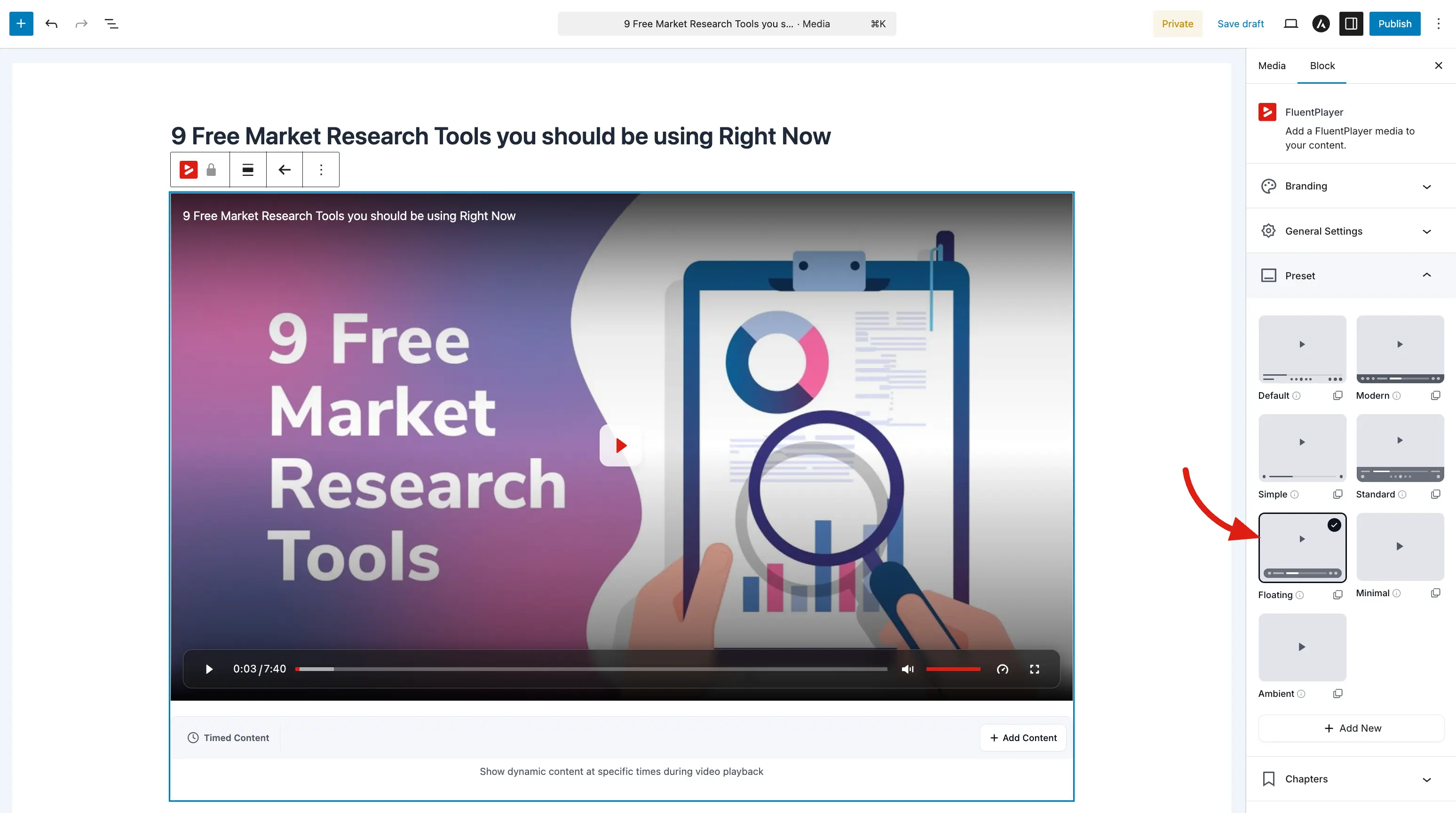
Floating (floating)
- Skin: Floating
- Controls: Transparent control bar; backward and forward skips are off in default data; PIP is off; playback speed enabled; control bar blur can be enabled.
- Best for: Cinematic or overlay style players where controls float over the video.
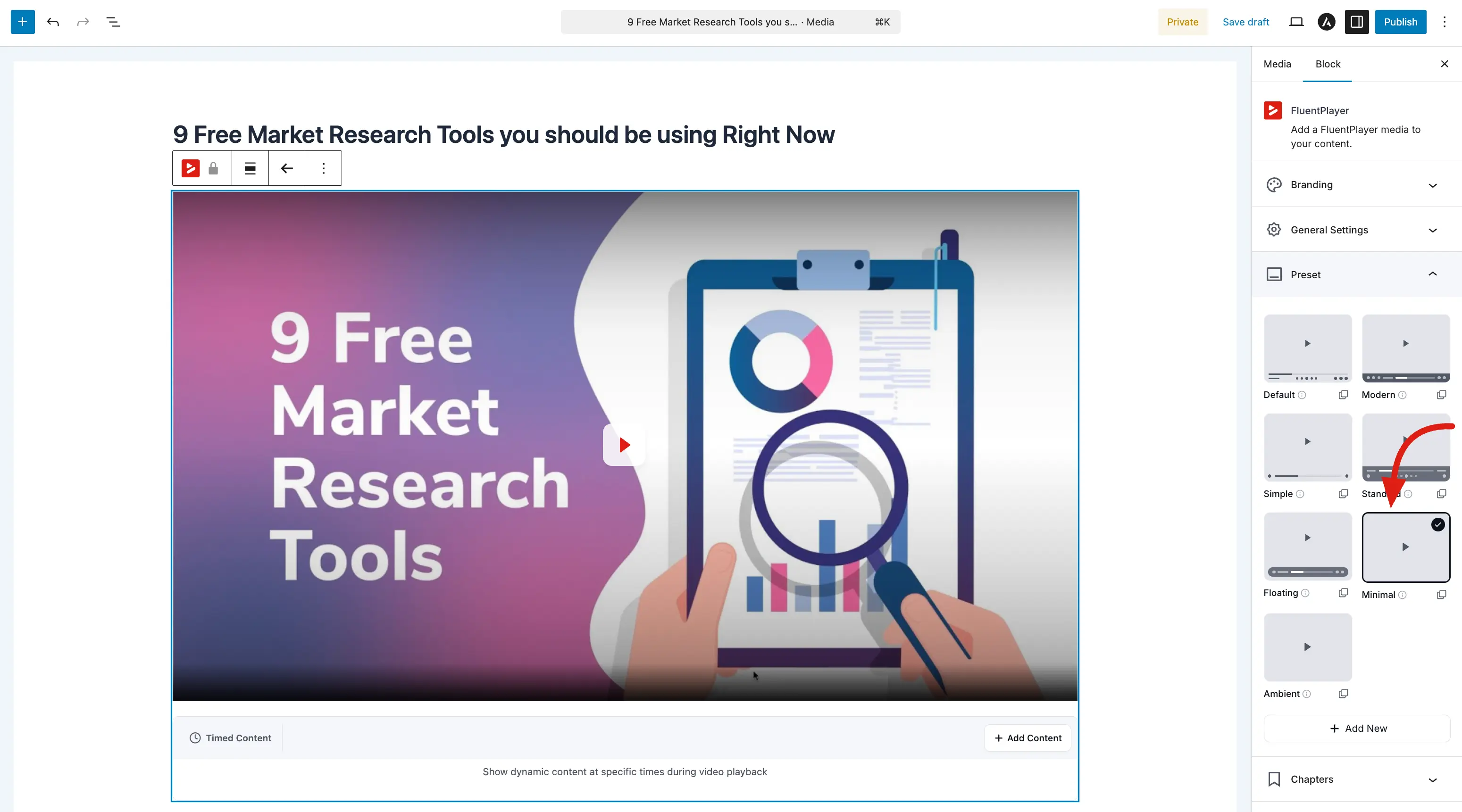
Minimal (minimal)
- Skin: Minimal
- Controls: Only center play; no visible bar (click video to play/pause).
- Best for: Hero sections or when chrome would distract (non looping).
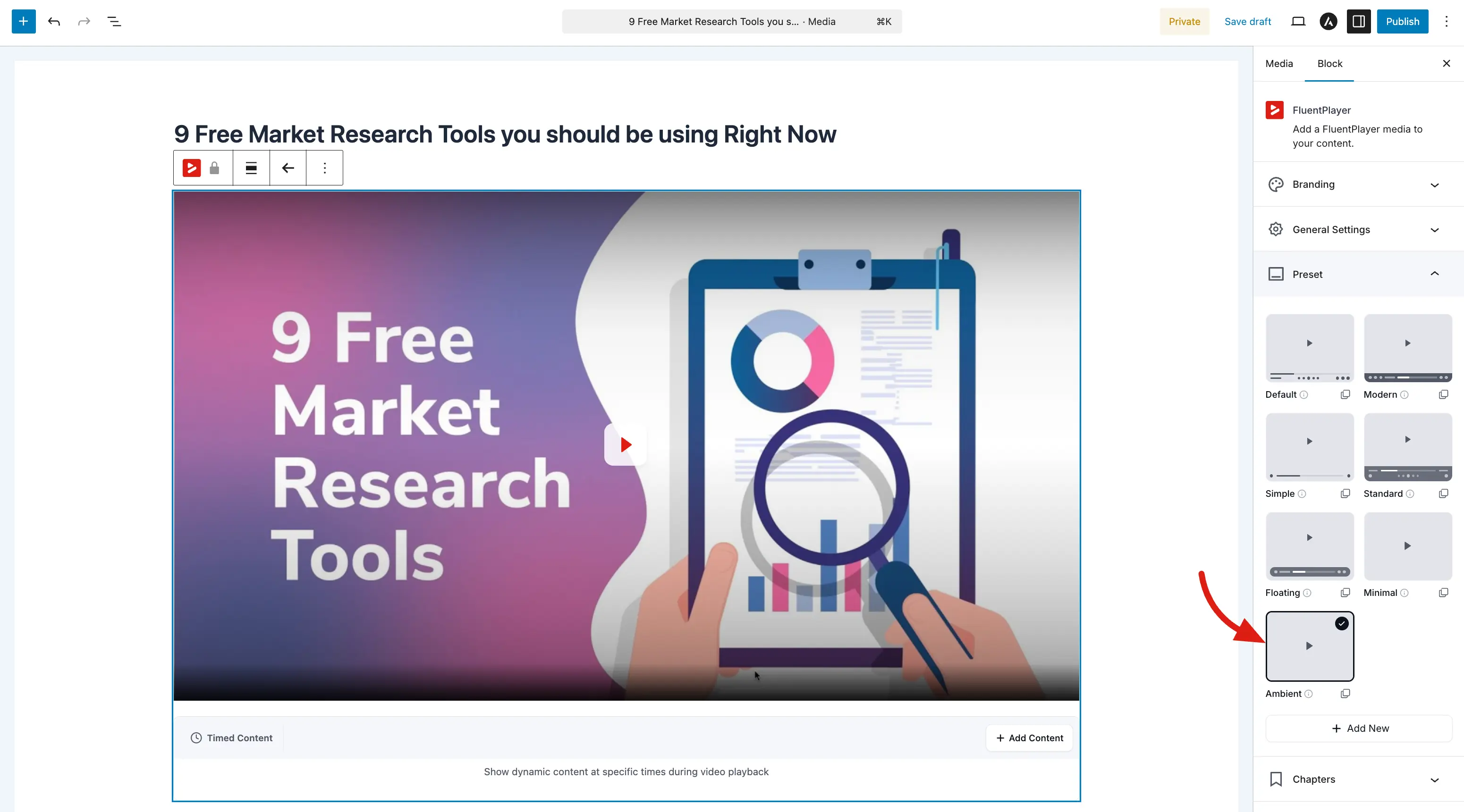
Ambient (ambient) (Pro)
- Skin: Minimal (same skin component as Minimal)
- Behaviors: Tuned for background use: muted style autoplay pattern, loop on end, all control areas hidden in default data.
- Best for: Ambient background video loops (subject to browser autoplay rules).
Choosing a preset for a media item
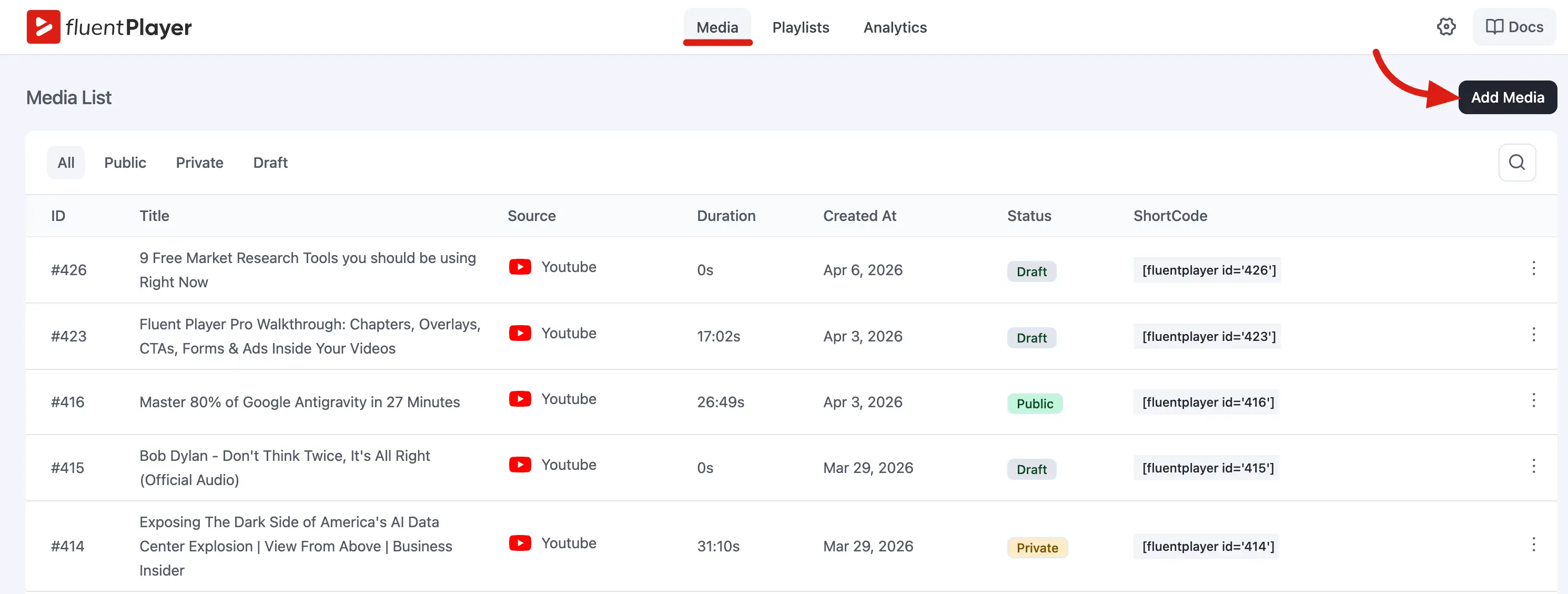
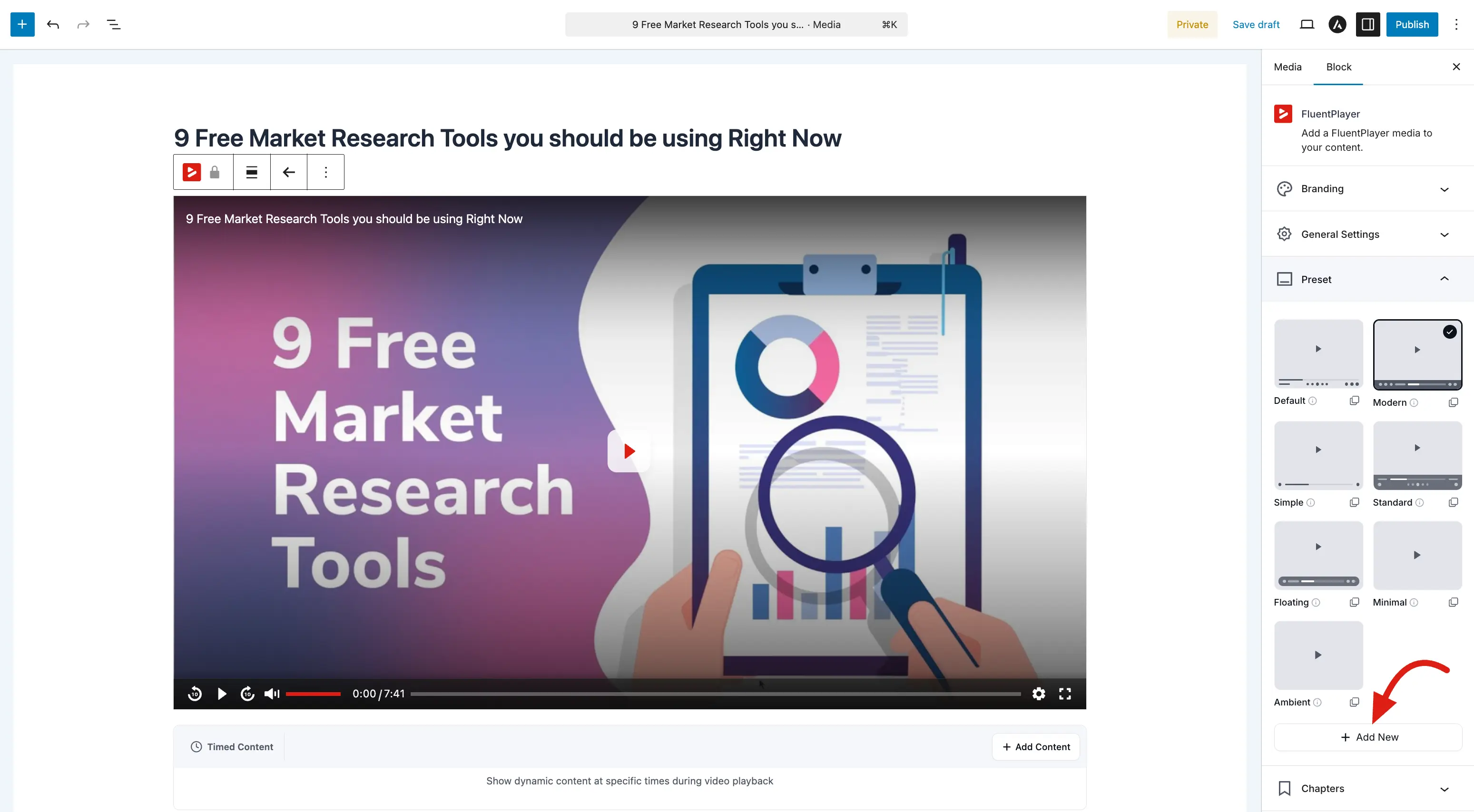
- Go to FluentPlayer → Media and open a media item.
- In the media editor, find the preset option.
- Select the preset you want (for example, Modern).
- Save.
The video will now use all the settings from that preset. If you want to change something for just this video (like turning off autoplay), you can override it in the media editor without affecting the preset itself.
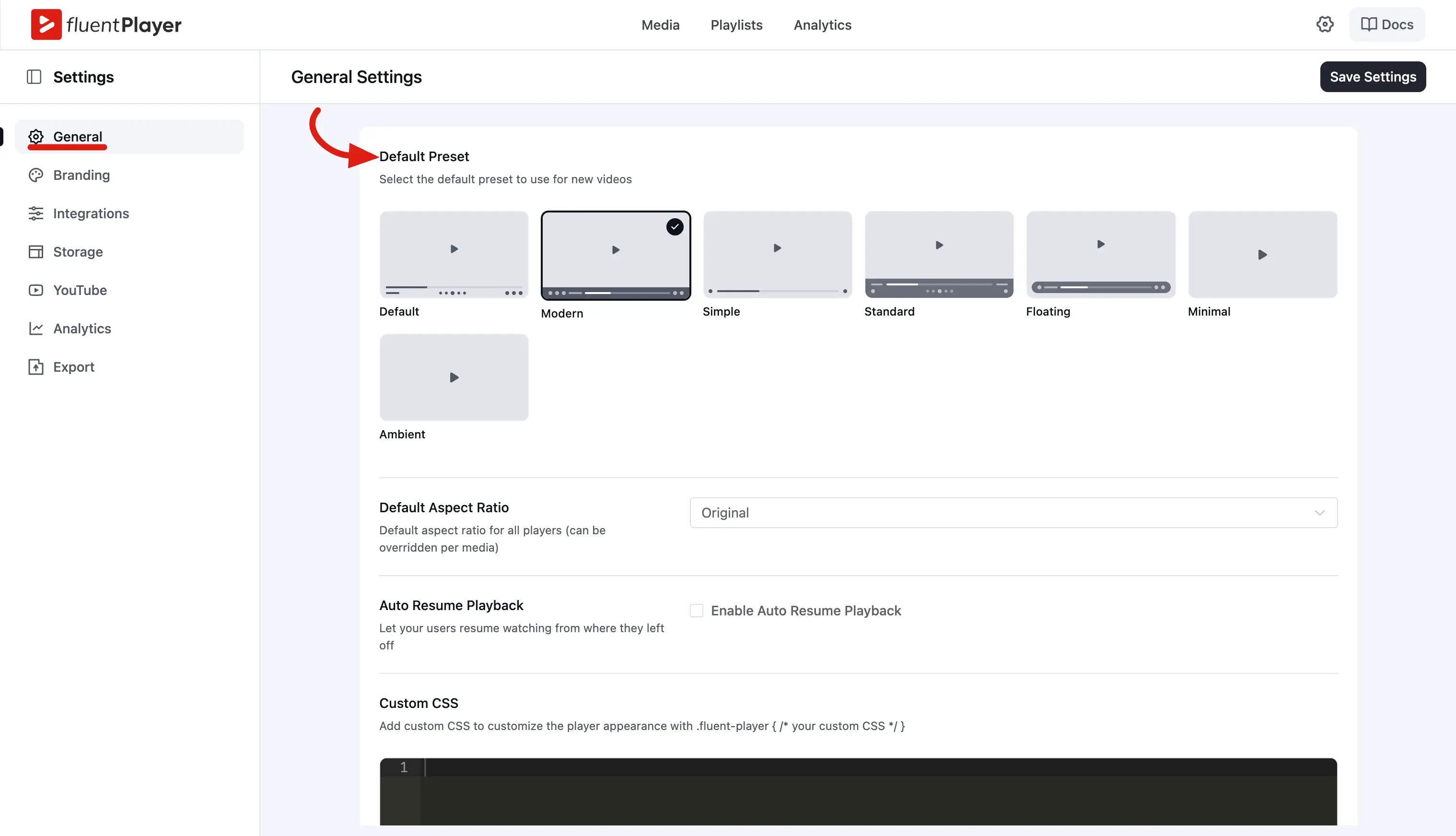
Setting the global default preset
The global default preset is applied to new media items and to any media that does not specify a preset.
- Go to FluentPlayer → Settings.
- Find the Default preset option under Settings → General.
- Select the preset you want as the default (fresh installs use Modern / slug
courseby default). - Save.
Creating custom presets (Pro)
With FluentPlayer Pro, you can create, edit, and delete your own presets. Custom presets must use a slug that is not one of the seven reserved slugs above.
Custom presets work just like the built in ones; they appear in the preset list and can be selected per media.
How preset inheritance works
Here is the order of priority when FluentPlayer builds the final player:
- Global default preset: The baseline from Settings.
- Chosen preset: If the media specifies a preset, it replaces the global default for that item.
- Per media overrides: Individual settings on the media item override the preset.
Example: The Modern preset has autoplay off. On a specific media, you turn autoplay on. That media will autoplay; all other media using Modern will not.