

Appearance
Branding Settings
The Branding section under Fluent Player → Settings sets the global visual identity for every player on your site — brand color, control bar color, and logo. These defaults apply to all embeds unless a preset or per media Branding panel override takes priority.
To open it, go to Fluent Player → Settings and select Branding from the inner settings sidebar. See Settings Overview for how global settings relate to presets and per media overrides.
Live Interactive Preview
When the Branding panel is open, a fully functional mini player appears on the right side of the screen. Changes to Brand Color and Control Bar Color update in the preview immediately — you do not need to save first to see the effect.
Use the preview to confirm contrast and readability before you publish site wide branding changes.
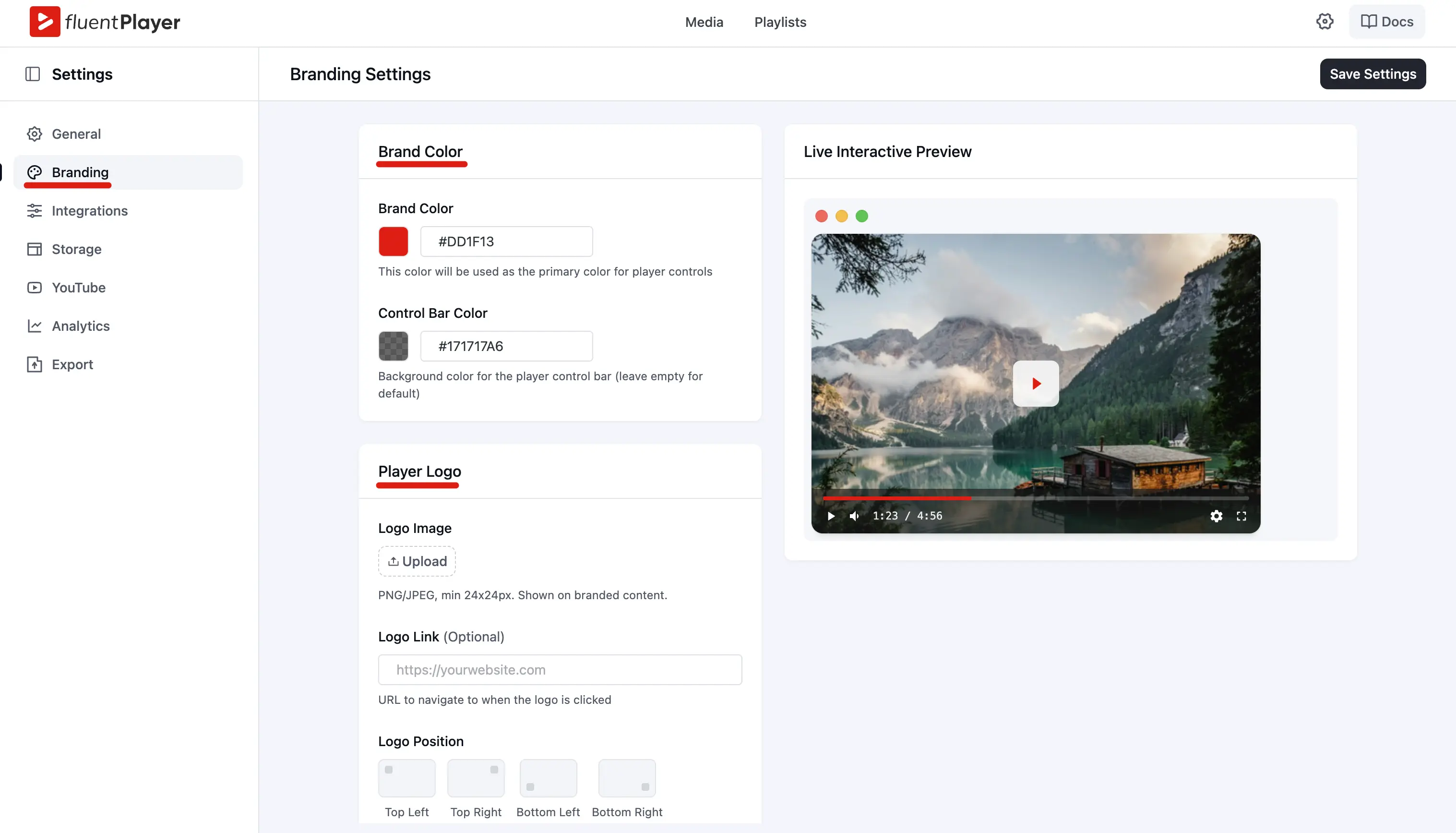
Brand Color
Brand Color is the primary accent used across the player — progress bar fill, active control highlights, and other interactive elements.
Example: If your site’s primary color is #FF6B35, set it here so the player matches your theme.
A single video can use a different accent when you override branding on the media item or in a preset. See Presets and Branding (Block sidebar).
Control Bar Color
Control Bar Color sets the background of the bottom control bar. You can use a solid hex value or a semi transparent rgba() color so the bar sits cleanly over the video.
Example: rgba(0, 0, 0, 0.6) gives a dark, translucent bar that keeps white control icons readable on bright footage.
Logo Image
Upload a Logo Image (PNG or JPEG) to show a watermark on every player. The UI shows a recommended minimum size — keep the file small and compact so it does not distract from the video.
TIP
Use a PNG with a transparent background so the logo blends naturally over video content.
Logo Link (Optional)
Logo Link is the URL that opens when a viewer clicks the logo. Leave it blank if the logo should not be clickable.
Example: https://yoursite.com
Logo Position
Logo Position chooses which corner displays the logo:
| Position | Best for |
|---|---|
| Top left | Standard watermark placement |
| Top right | When titles or lower thirds sit on the left |
| Bottom left | When action buttons cluster on the right |
| Bottom right | Keeps the logo away from left aligned titles |
Pick the corner that avoids covering the most important part of your video frame.
Global vs Per Media Branding
| Setting | Set globally here | Override per video |
|---|---|---|
| Brand color | Yes | Branding panel or preset |
| Control bar color | Yes | Branding panel |
| Logo image, link, position | Yes (site wide) | Per media via Use Custom Branding in the block editor |
INFO
Logo and control bar color configured here apply to every player by default. To brand one video differently, open the media in Fluent Player → Media, enable Use Custom Branding under the Block tab, and adjust that item’s logo and colors.
Saving Changes
Click Save Settings in the top right of the Branding panel after you make changes. New page loads will use the updated branding immediately.
If a specific embed still shows old colors or a different logo, open that media item and check whether Use Custom Branding or a preset override is active.