

Appearance
Mux (Pro)
Mux is a professional video platform for hosting, streaming, and analyzing video. FluentPlayer Pro includes a full Mux integration so you can connect your Mux account, upload or link assets, use HLS playback, optional signed URLs for protected content, live streaming, AI-generated captions, and Mux Data playback analytics — without leaving WordPress.
Pro feature
Mux is available only with FluentPlayer Pro. Install and activate the free FluentPlayer plugin first, then activate Pro.
Why Use Mux?
- Adaptive Streaming: Deliver content via HLS with automatic quality switching based on the viewer’s network speed.
- Managed Encoding: Mux handles the heavy lifting of video processing. Webhooks keep your WordPress site updated on asset status.
- Live Streaming: Create and manage live broadcasts via the Mux API, seamlessly integrated into the plugin’s REST layer.
- Advanced Security: Protect your content with Signed Playback URLs. The integration also supports Mux Playback Restrictions, allowing you to define granular delivery rules.
- AI Captions: Automatically generate subtitles in multiple languages using Mux’s AI transcription service.
- Mux Data: Use your Environment Key to monitor playback quality and performance analytics alongside FluentPlayer’s native tracking.
Generate API Credentials in Mux
To connect the platforms, you first need to create access tokens in your Mux account:
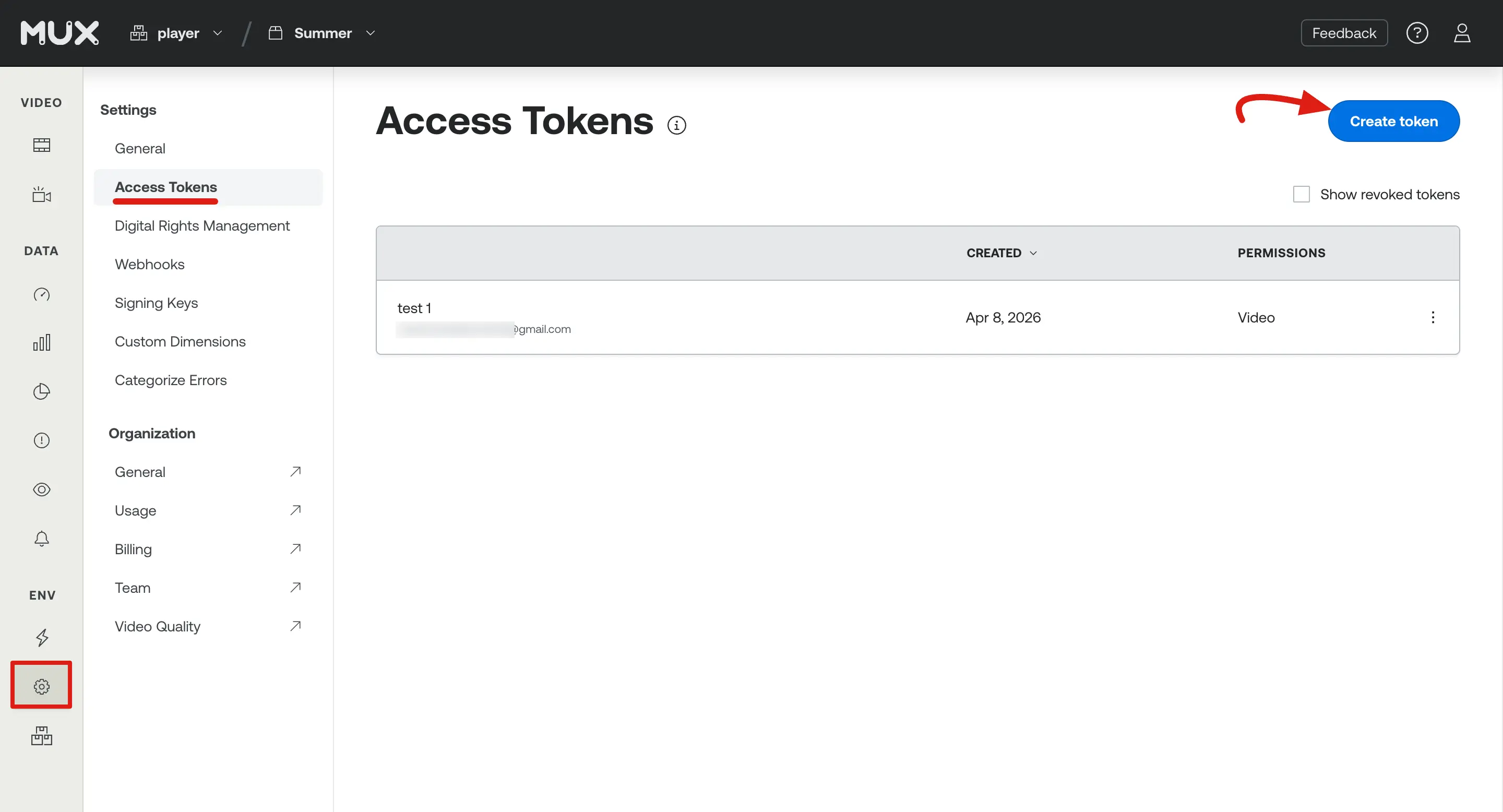
Log in to your Mux Dashboard and navigate to Settings → Access Tokens. Click Create Token.
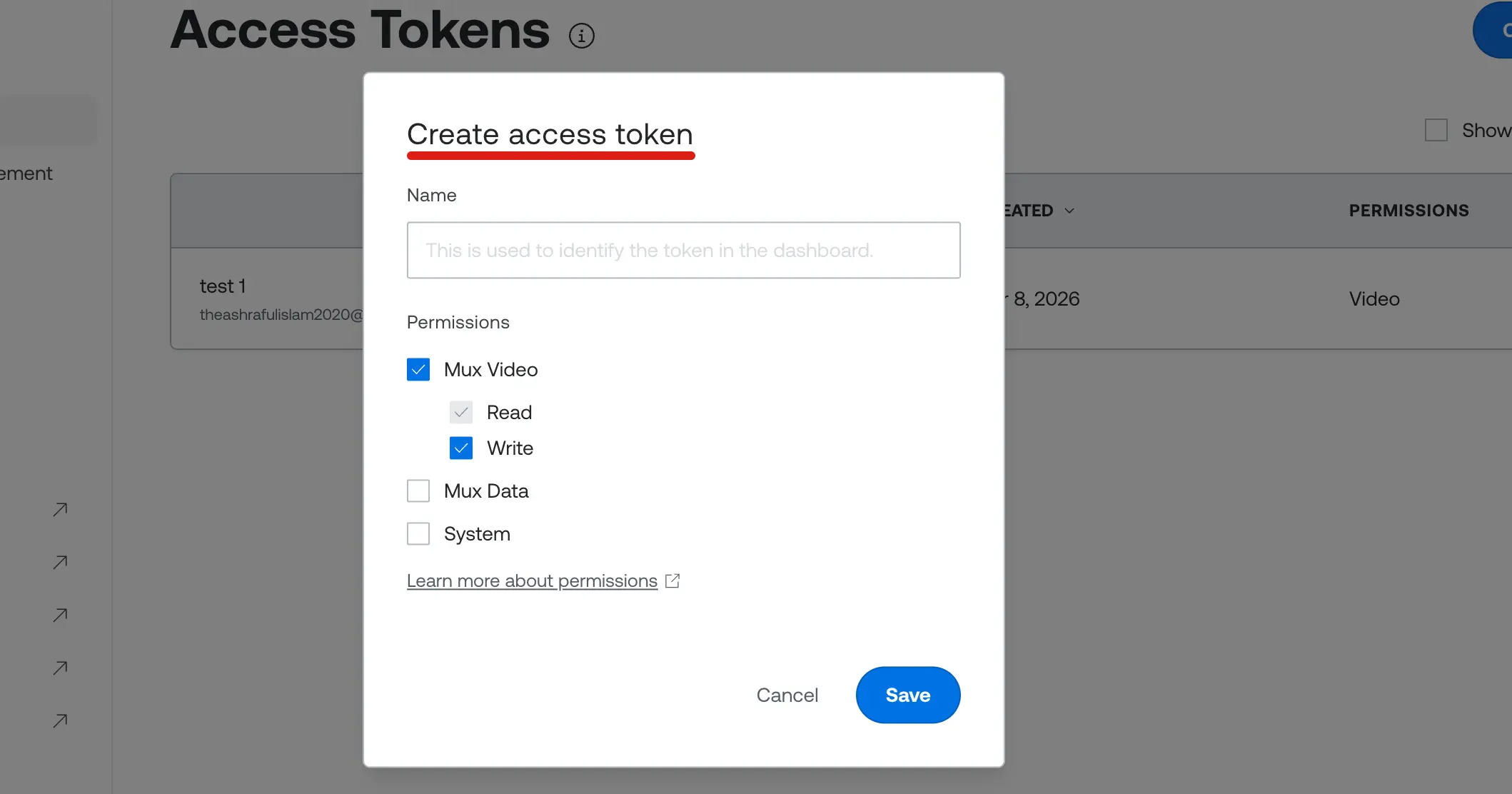
A popup will appear. Provide a Name for the token and ensure you select Mux Video permissions (Read + Write).
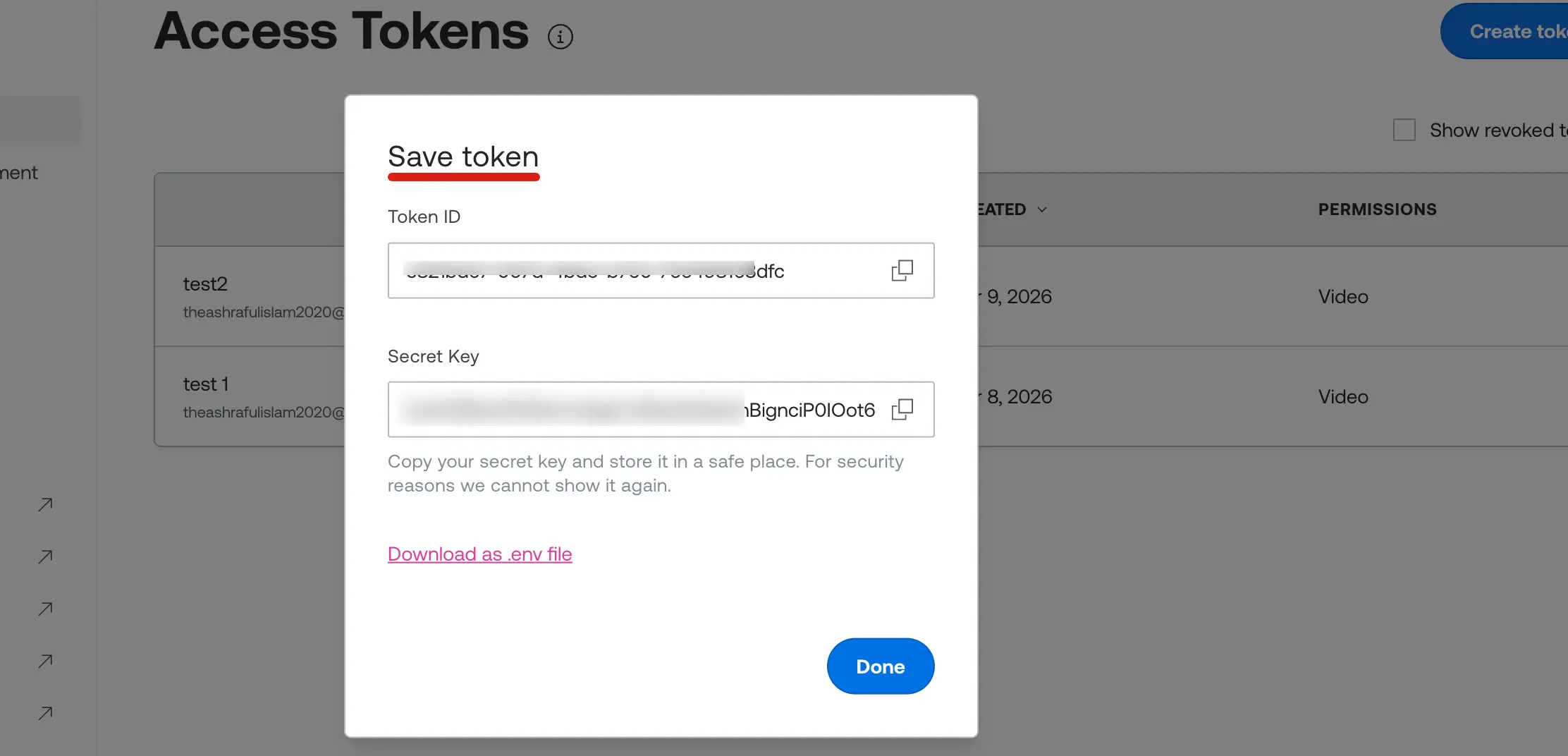
Copy your Token ID and Token Secret for later use.
INFO
The Token Secret is only shown once in the Mux dashboard; be sure to save it securely.
Generate a Signing Key (Optional)
If you plan to use restricted/private content, you need a Signing Key:
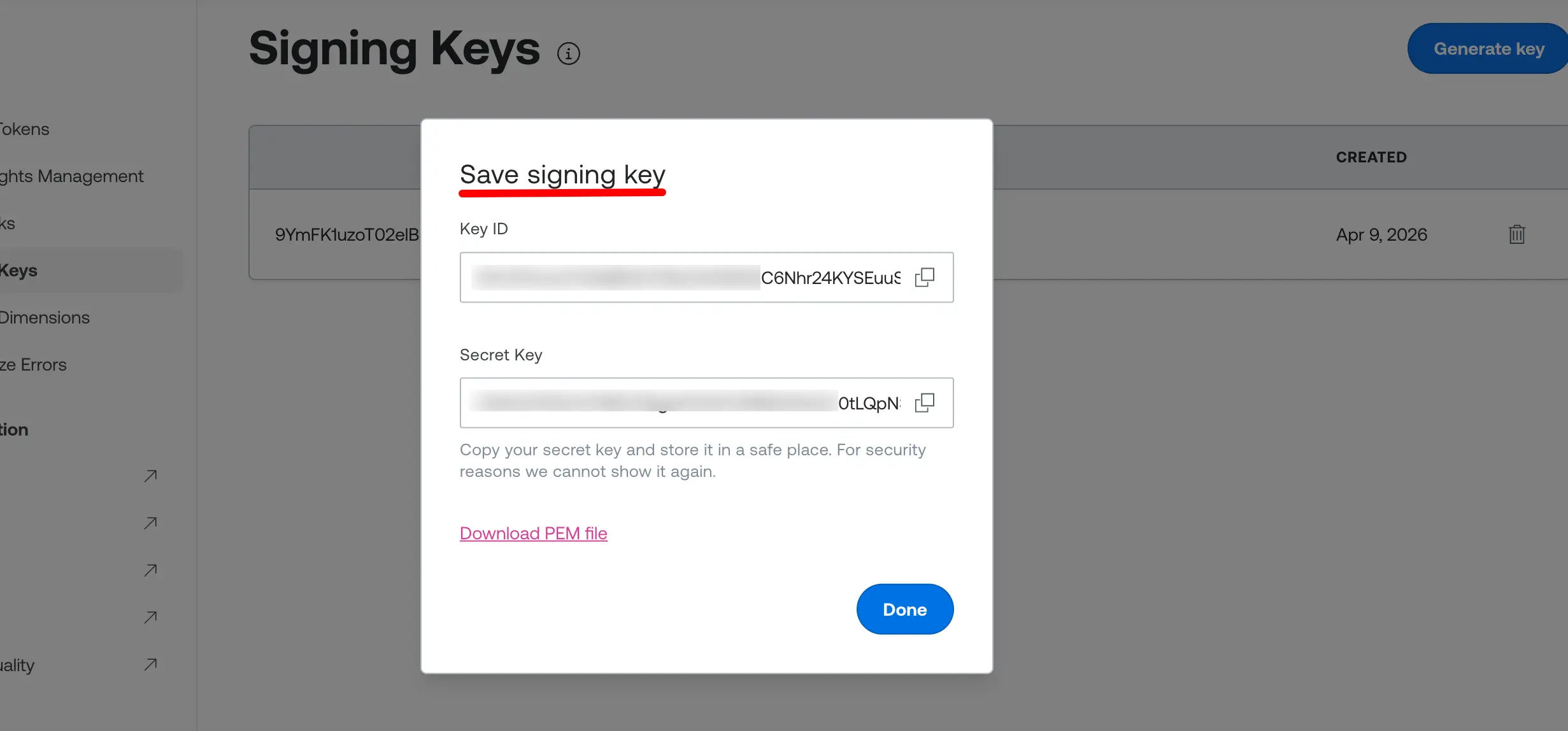
Go to Settings → Signing Keys and click Generate Key.
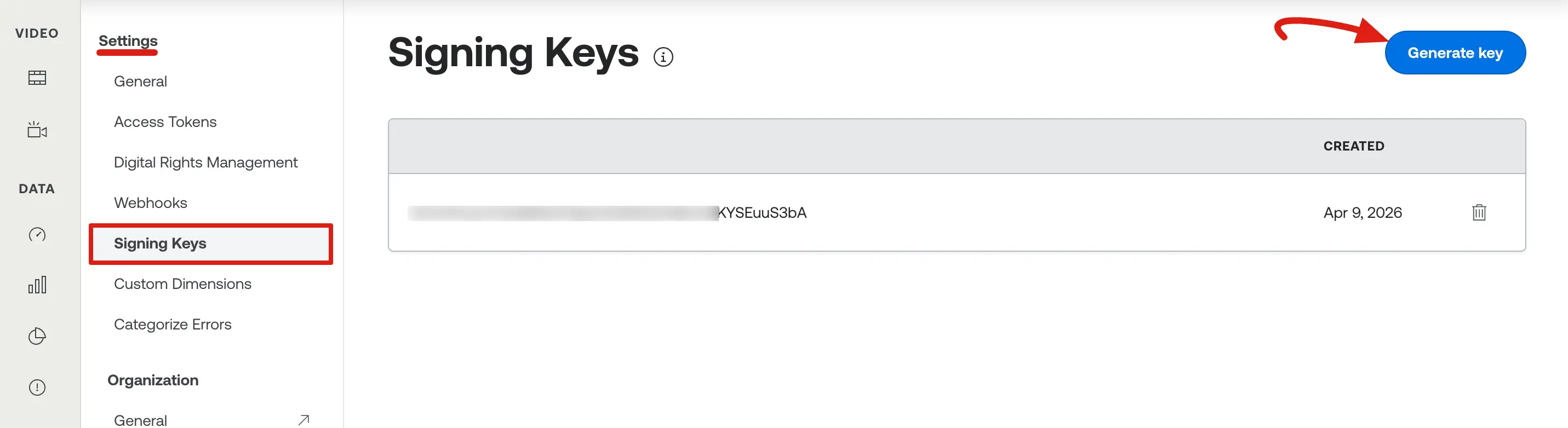
A popup will display your Key ID and Secret Key. Copy these for the integration settings.
Configure Webhooks (Optional but Recommended)
Webhooks allow Mux to "talk" to WordPress, notifying your site when a video is finished processing or if an error occurred.
- In your WordPress admin, go to FluentPlayer Pro → Settings → Storage → Mux.
- Copy the Webhook URL provided in the settings.
- In the Mux Dashboard, go to Settings → Webhooks and click Create New Webhook.
INFO
Webhook functionality is essential for automatic status and metadata updates after a video finishes processing.
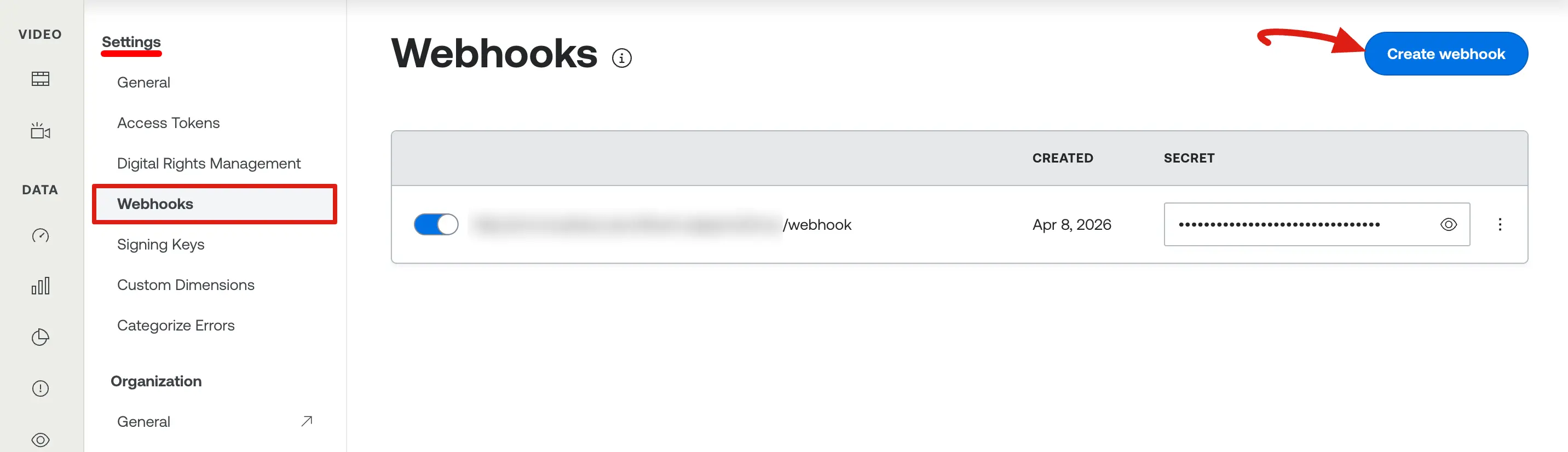
- A popup window will appear. Paste the URL and save. Mux will provide a Webhook Secret.
- Copy that secret back into the Webhook Secret field in your FluentPlayer settings.
Mux Data Environment Key (Optional)
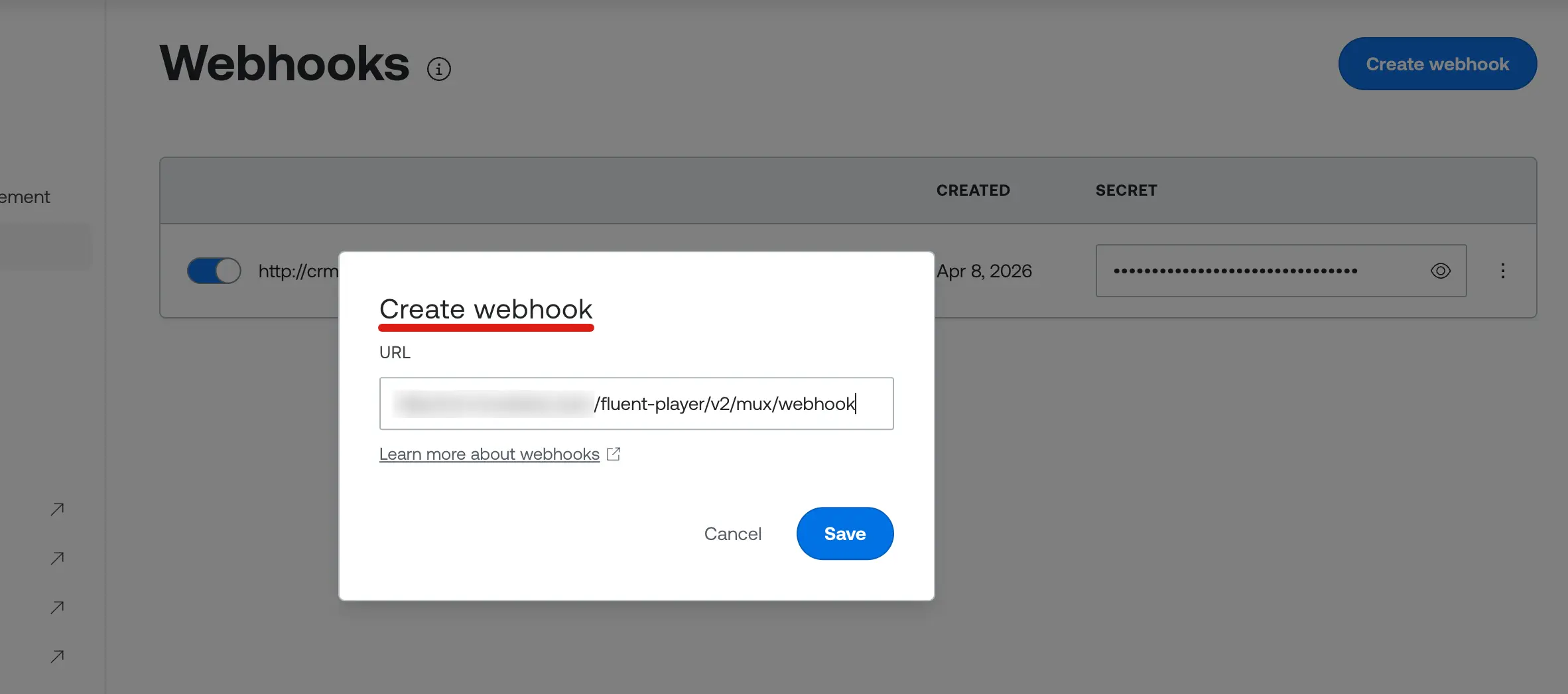
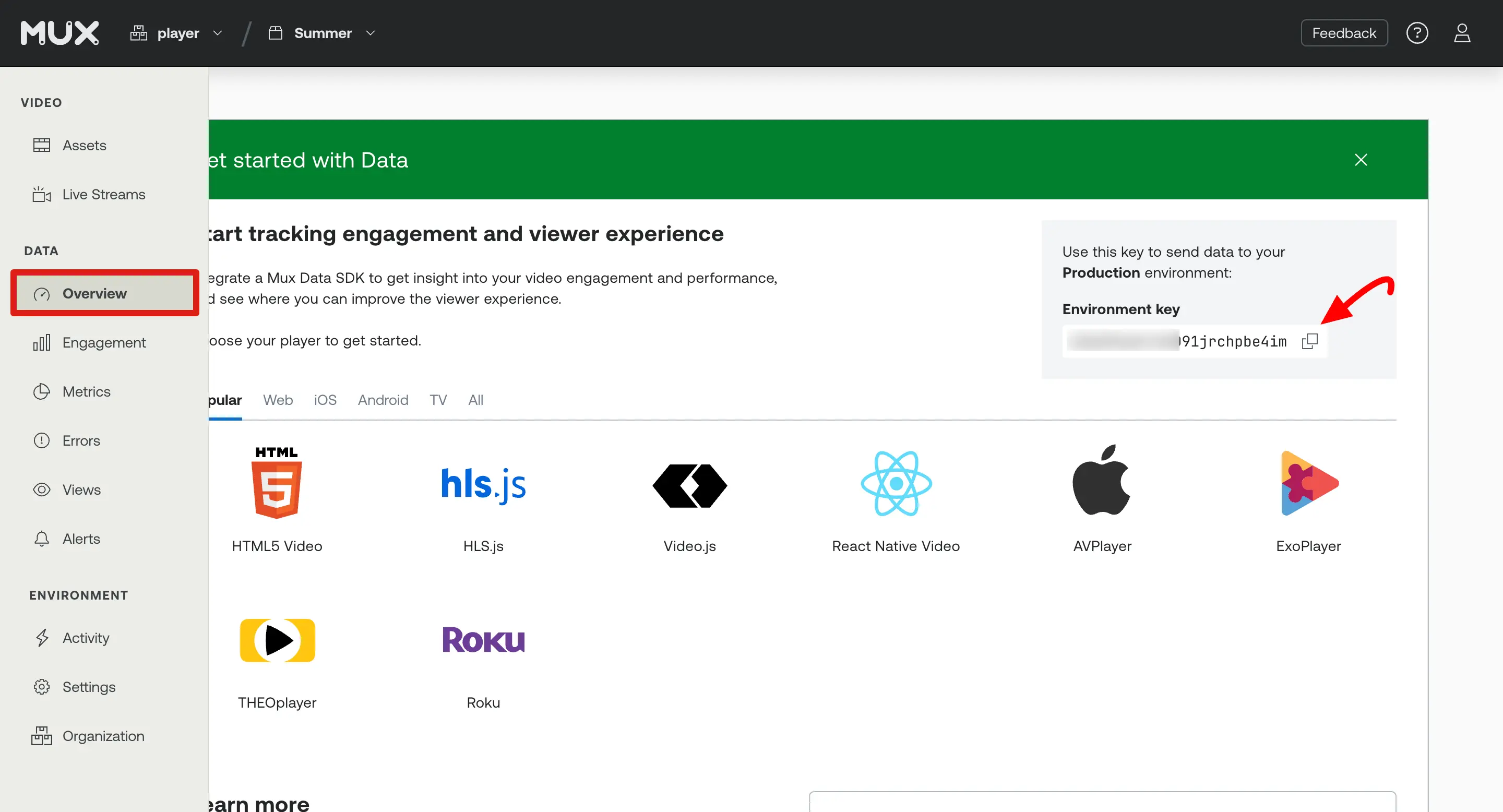
Copy the Environment Key from the top-right corner of the Mux Dashboard for later use.
Connect Mux to FluentPlayer
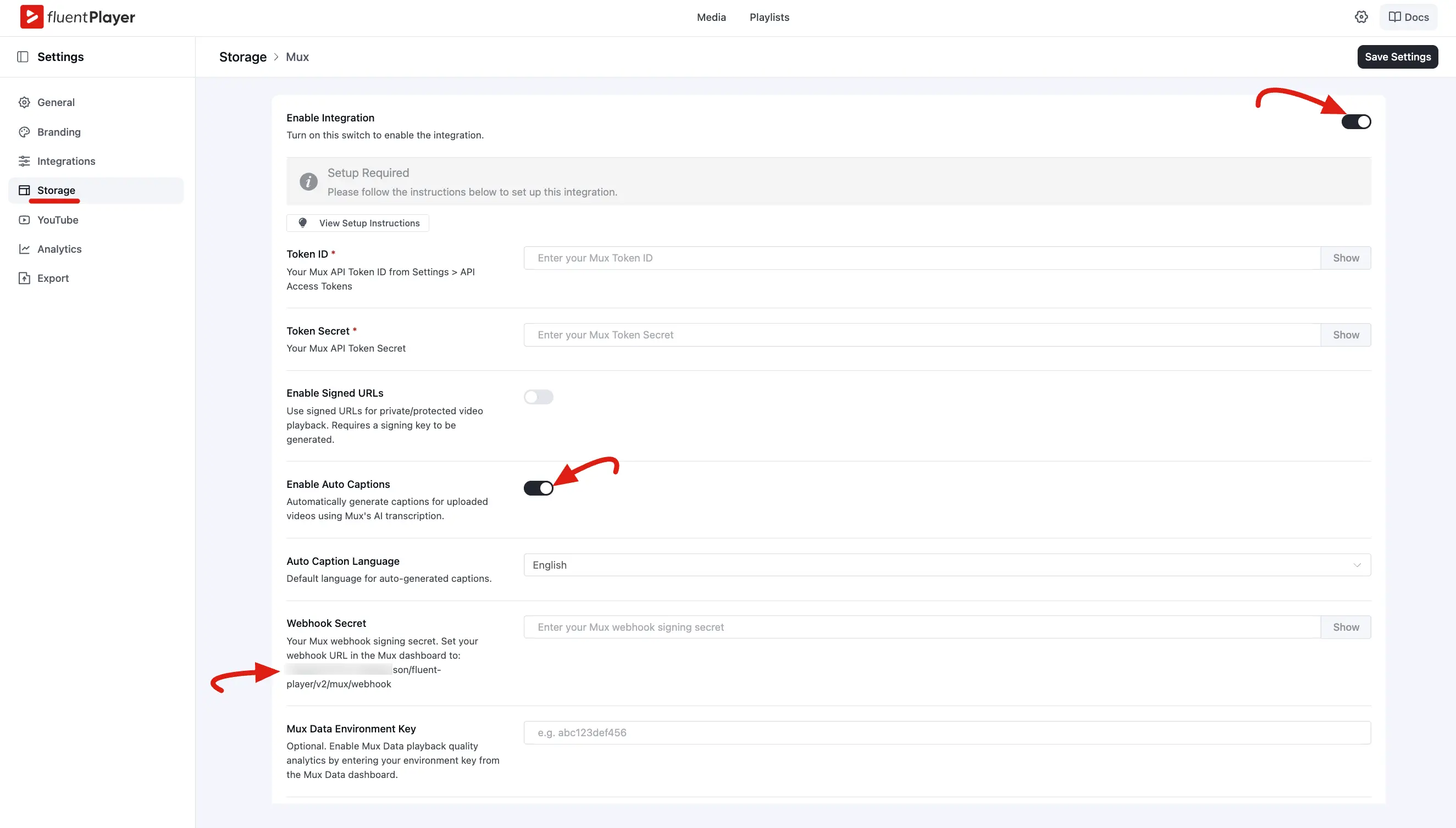
- In your WordPress admin, go to FluentPlayer Pro → Settings → Storage.
- Find the Mux row and click Configure.
- Enable the Enable Integration toggle.
- Paste your Token ID and Token Secret into the designated fields.
- Click Test Connection to verify the credentials. Click Save Settings button to save it.
Configure Optional Settings
- Signed URLs: Enable this if you require access restricted playback for your videos.
- Auto Captions: Turn this on to have Mux automatically generate subtitles for new uploads using AI transcription.
- Webhook Secret: Create a webhook in your Mux dashboard using the URL provided in the settings and paste the secret here. This allows Mux to notify WordPress when video assets are ready.
- Mux Data Environment Key: Enter your environment key from the Mux Data dashboard to track playback quality analytics.
DRM & Access control (Pro)
For content you need to protect, FluentPlayer's Mux integration goes beyond a public URL:
- Signed playback URLs — When Signed URLs is enabled, FluentPlayer requests short-lived, signed (JWT) playback URLs for video, thumbnails, and storyboards using your Mux Signing Key. Links expire, so they cannot be shared or hotlinked indefinitely.
- DRM (Widevine / FairPlay) — For DRM-protected Mux assets, FluentPlayer requests a DRM license token so the player can decrypt and play the stream. This provides stronger protection than signed URLs alone.
- Playback restrictions — Mux's own playback-restriction rules (for example, allowed referrer domains) continue to apply on top of the above.
To use these, enable Signed URLs in the integration and make sure you have generated a Signing Key (see Generate a Signing Key). DRM additionally requires that the Mux asset itself is configured for DRM in your Mux account.
TIP
Signed URLs cover most "don't let people hotlink my video" needs. Reach for DRM only when you specifically require encrypted, license-gated playback.
Use Mux as a Video Source
Once connected, you can use Mux assets anywhere on your site:
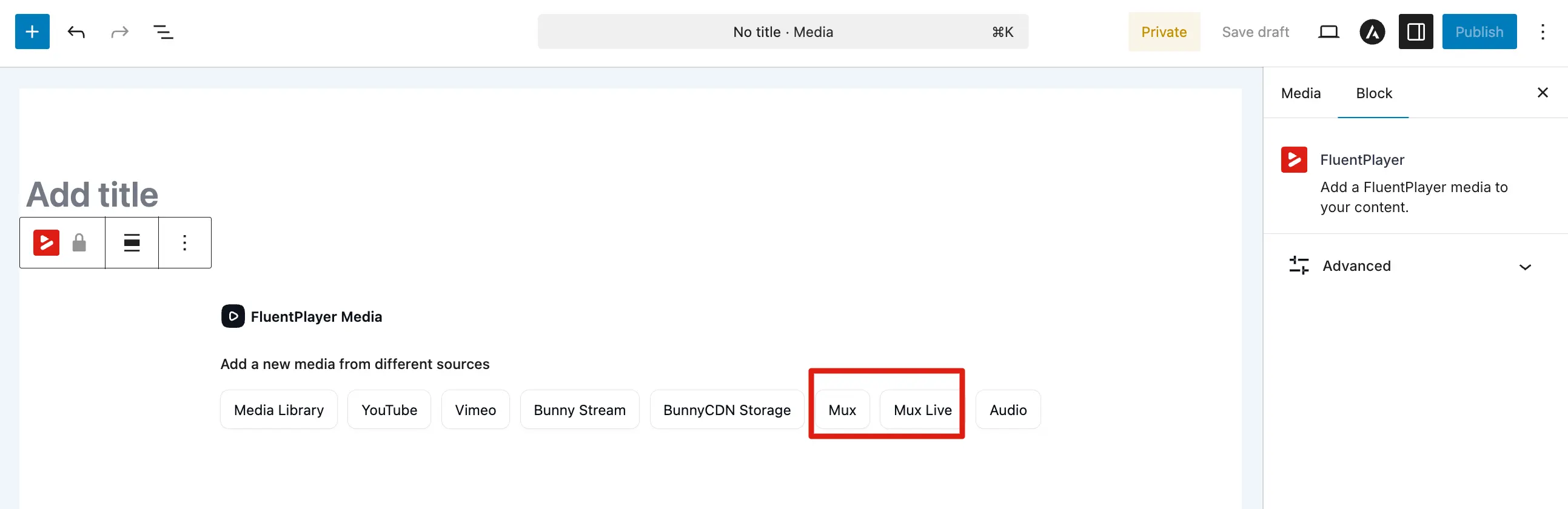
- Go to FluentPlayer → Media and click Add Media.
- Under Source Type, select Mux or Mux Live.
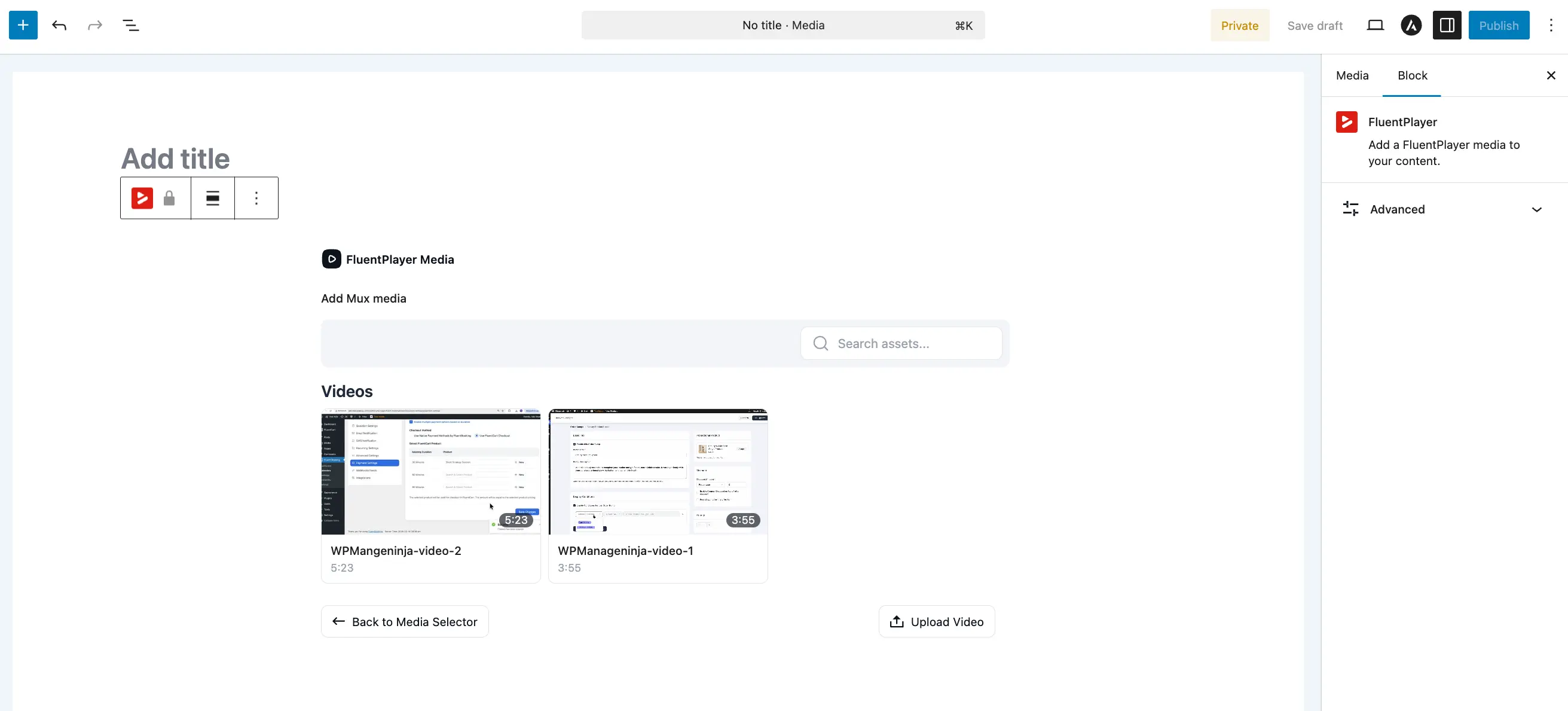
- Search & Select: You can browse your existing Mux library directly from the interface.
- Direct Upload: Click Upload Video to send a file from your computer directly to Mux.
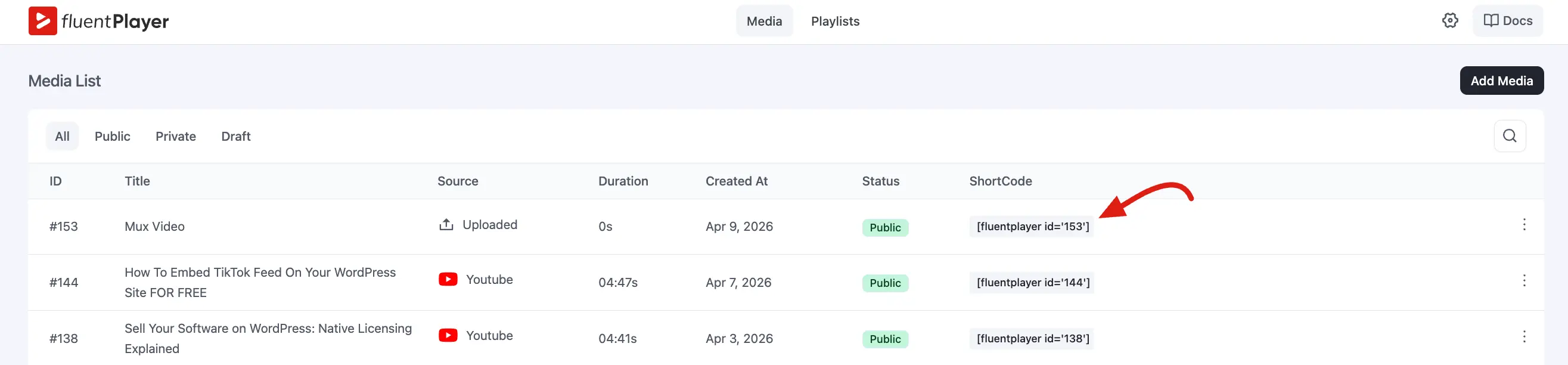
- Publish: Once an asset is selected, publish the media item to generate a shortcode or use the FluentPlayer Gutenberg block.
Mux and FluentPlayer Analytics
You can use both:
- Built-in Analytics: Viewership inside WordPress (plays, retention, top videos, locations, and more).
- Mux Data (optional): Enter the Mux Data environment key in the integration for Mux’s own quality and delivery analytics.
Use Mux as an Audio Source
In addition to video, you can browse and play audio assets from your Mux account directly inside FluentPlayer.
Browse from the Mux Library
- Go to FluentPlayer → Media and click Add Media.
- Select Mux from the source picker.
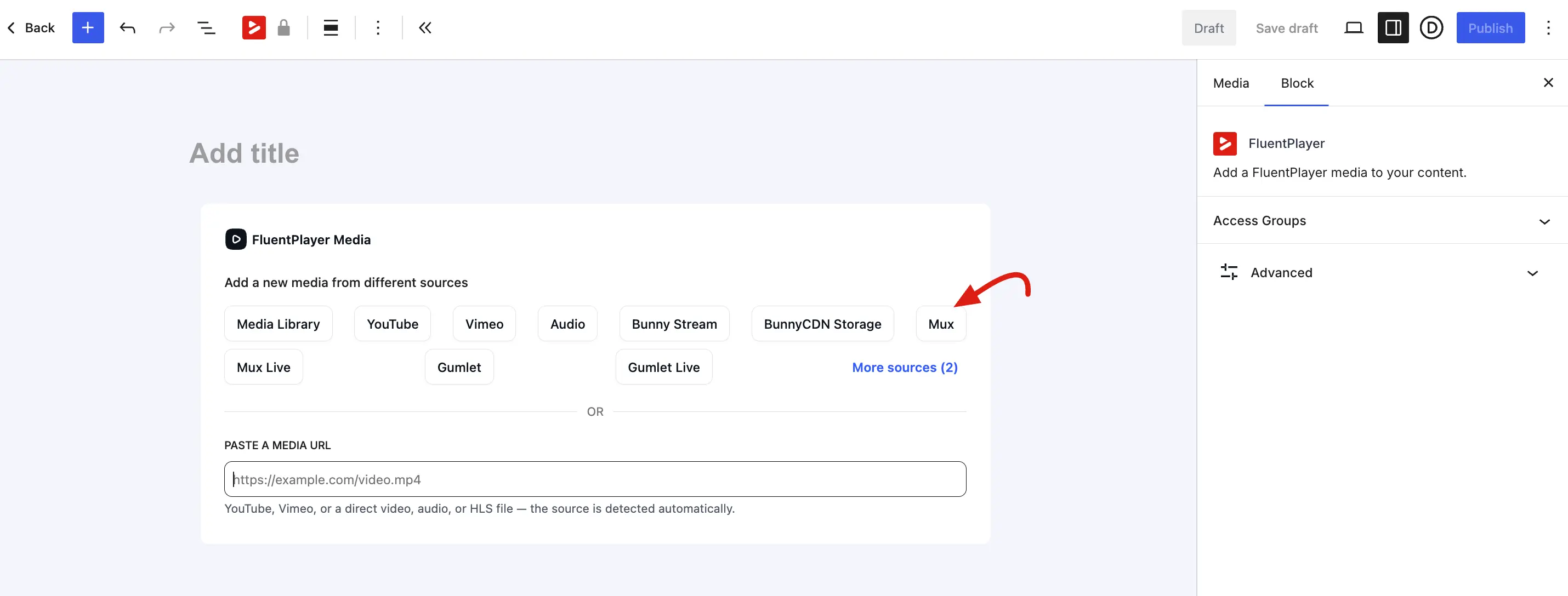
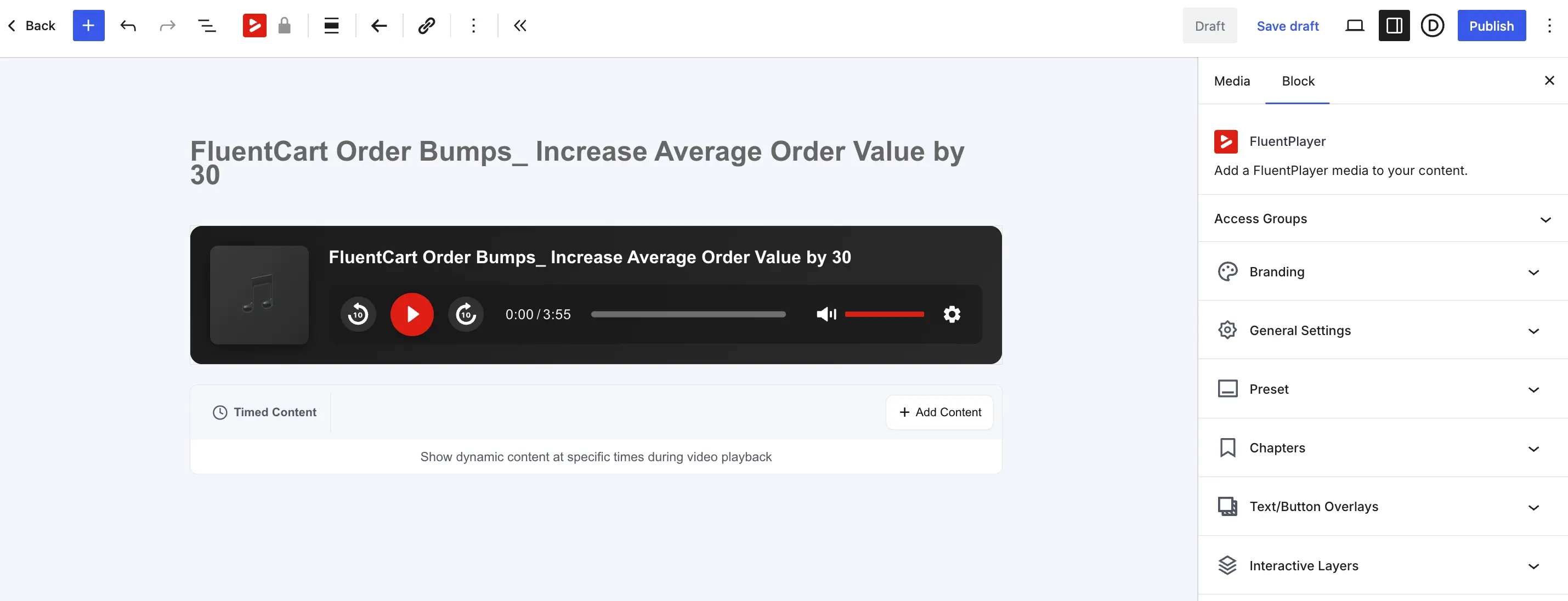
- Click on your target audio asset from the list to add it instantly.
Add via Public Playback URL
Alternatively, you can add a Mux audio asset using its public playback URL:
- Log in to your Mux account and navigate to your audio assets library.
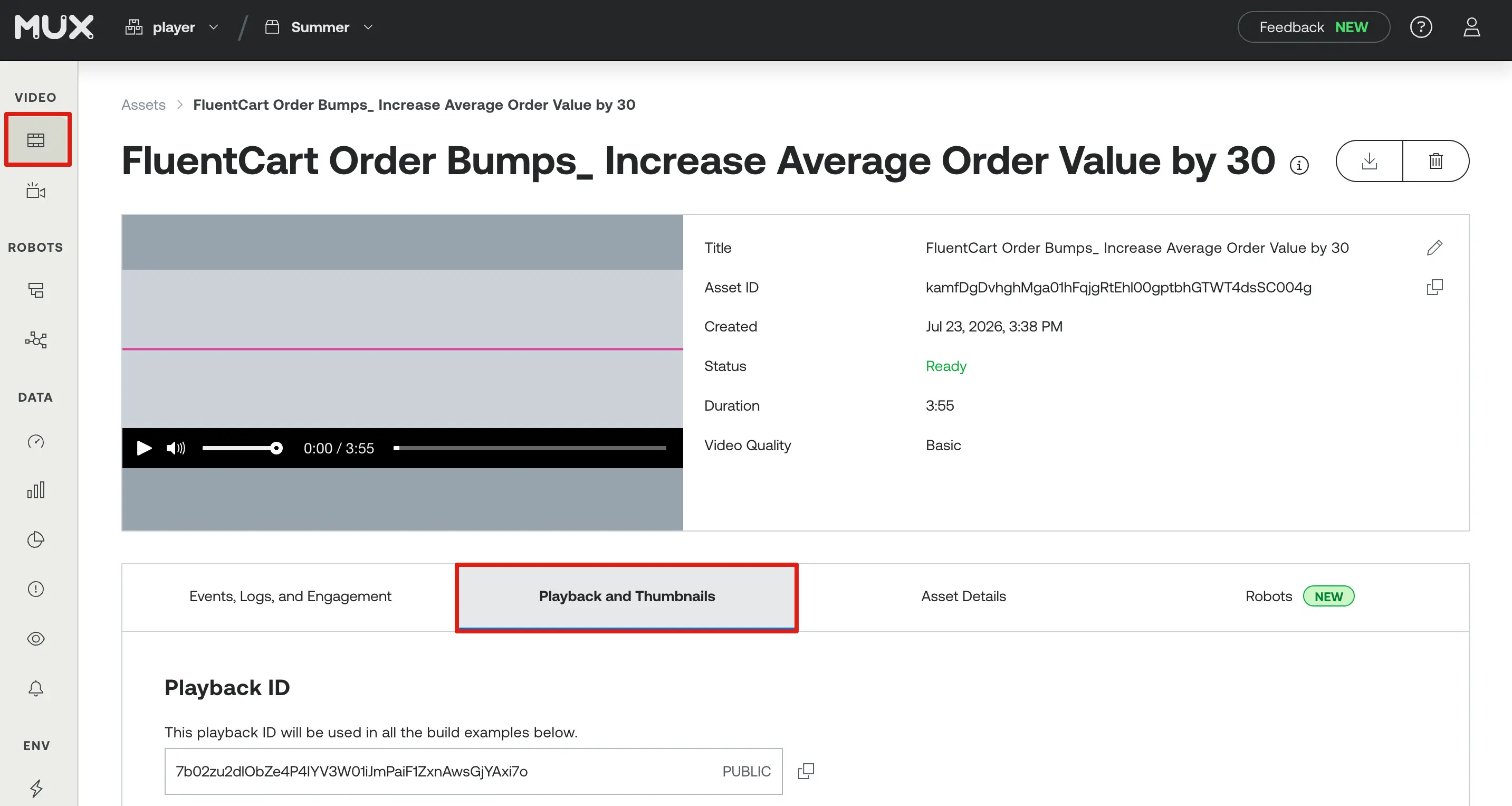
- Click on your target asset to open its details page, then open the Playback and Thumbnails tab.
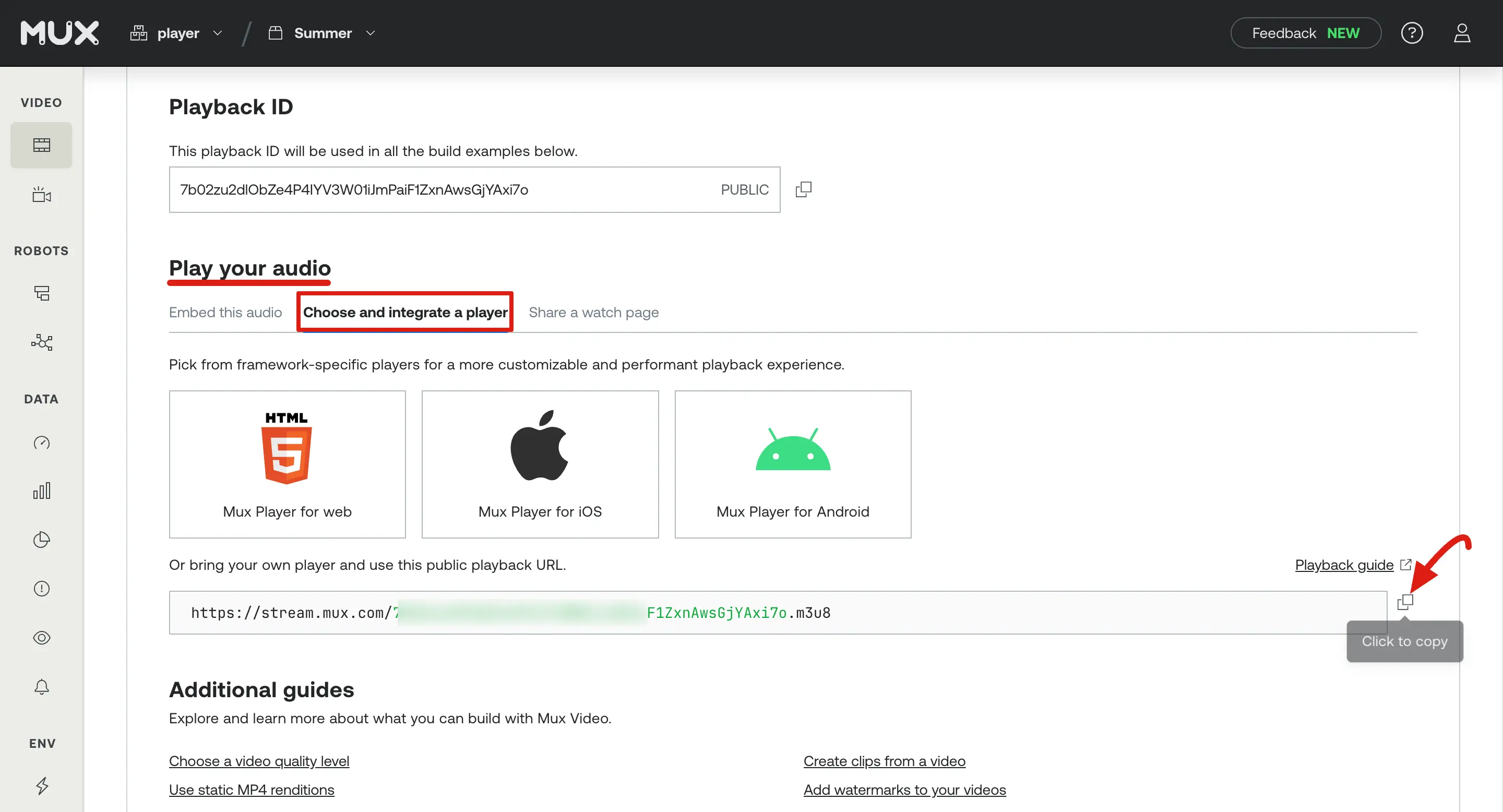
- Locate the Play your audio section and click Choose and integrate a player.
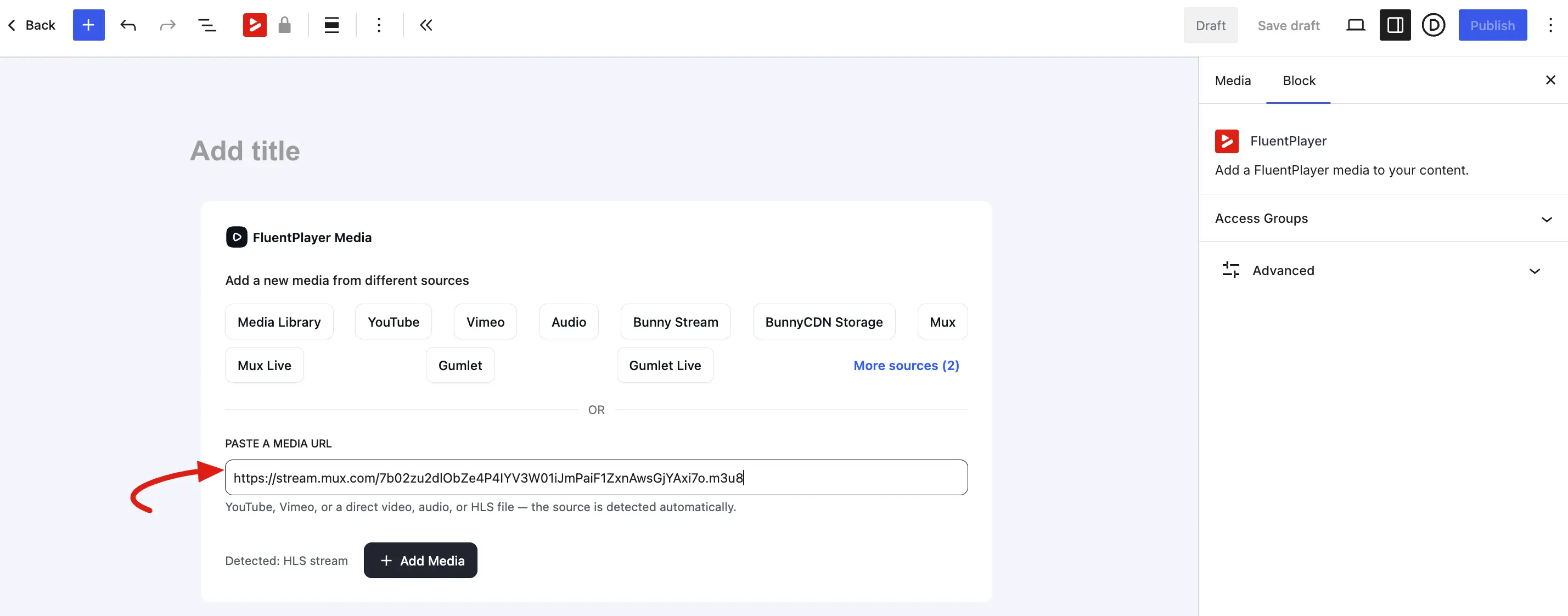
- Copy the public playback stream URL (ending in .m3u8).
- In your WordPress admin, go to FluentPlayer → Media and click Add Media.
- Paste the copied URL into the Paste a Media URL field and click Add Media.
Troubleshooting
| Problem | Likely cause | What to do |
|---|---|---|
| Connection test fails | Invalid or revoked token, or missing Mux Video permissions | Regenerate an access token in Mux with Read + Write permissions. Re copy the Token ID and Token Secret into Fluent Player → Settings → Storage → Mux, then run Test Connection again. |
| Video stays “processing” | Webhook not configured or WordPress cannot receive callbacks | Confirm the Webhook URL and Webhook Secret match between Mux and Fluent Player. Your site must use HTTPS so Mux can deliver status updates when encoding finishes. |
| Playback errors with signed URLs | Signing key missing, expired URL, or server clock skew | Generate a Signing Key in Mux and save the Key ID and Secret Key in the integration settings. Disable signed URLs temporarily to test basic playback, then re enable once keys are verified. |
TIP
Most Mux issues trace back to credentials, webhooks, or signed URL keys. After changing any of these in Mux, return to Settings → Storage → Mux, save again, and upload or re select the asset in Fluent Player → Media.
Integrating Mux with FluentPlayer Pro provides a scalable, professional-grade video delivery system within WordPress. From adaptive HLS streaming to real-time analytics, this connection ensures your audience receives the best possible viewing experience while you maintain full control over your content management.