

Appearance
Embed with Gutenberg Block
The Gutenberg Block is the easiest way to add videos if you prefer a visual, drag-and-drop experience. If you use the WordPress block editor (Gutenberg), you can add FluentPlayer using the FluentPlayer Media block. The inserter lists it as FluentPlayer / FluentPlayer Media (registered name: fluent-player/media).
How to Add the Block
You can add a video to any post or page by following these steps:
- Open the WordPress editor for any post or page.
- Click the (+) button to add a new block and search for "FluentPlayer".
- Select the FluentPlayer block from the list.
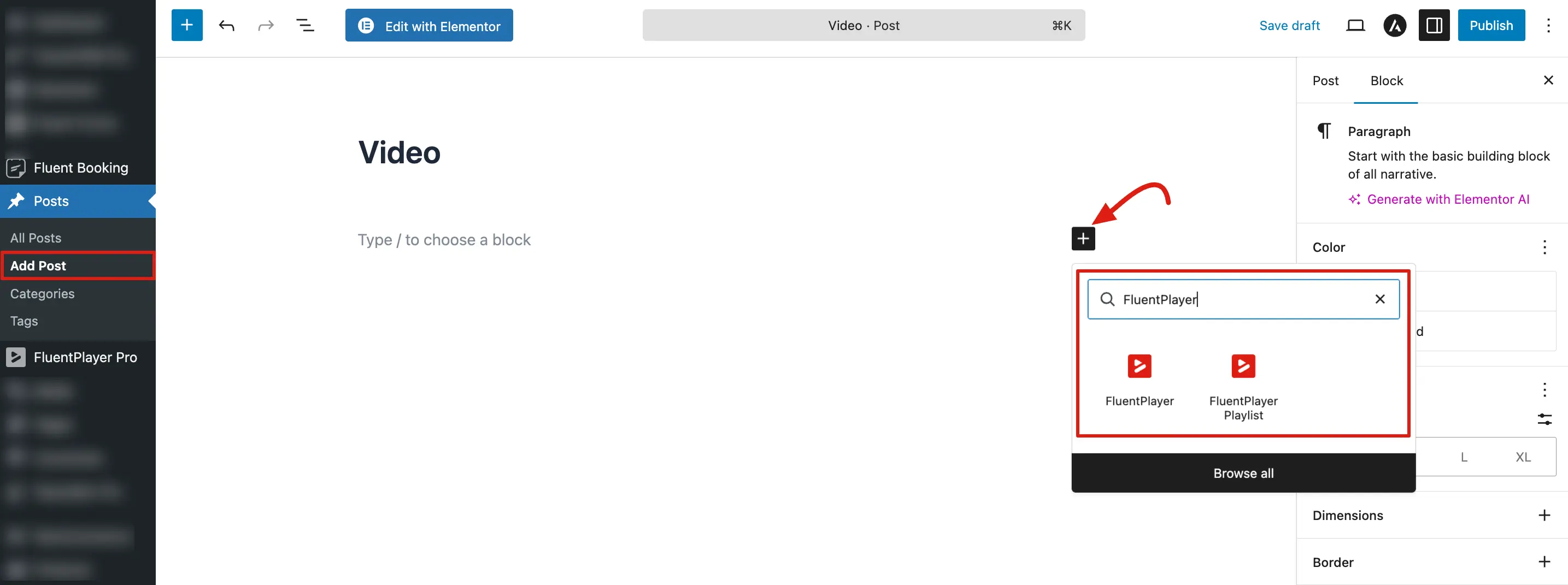
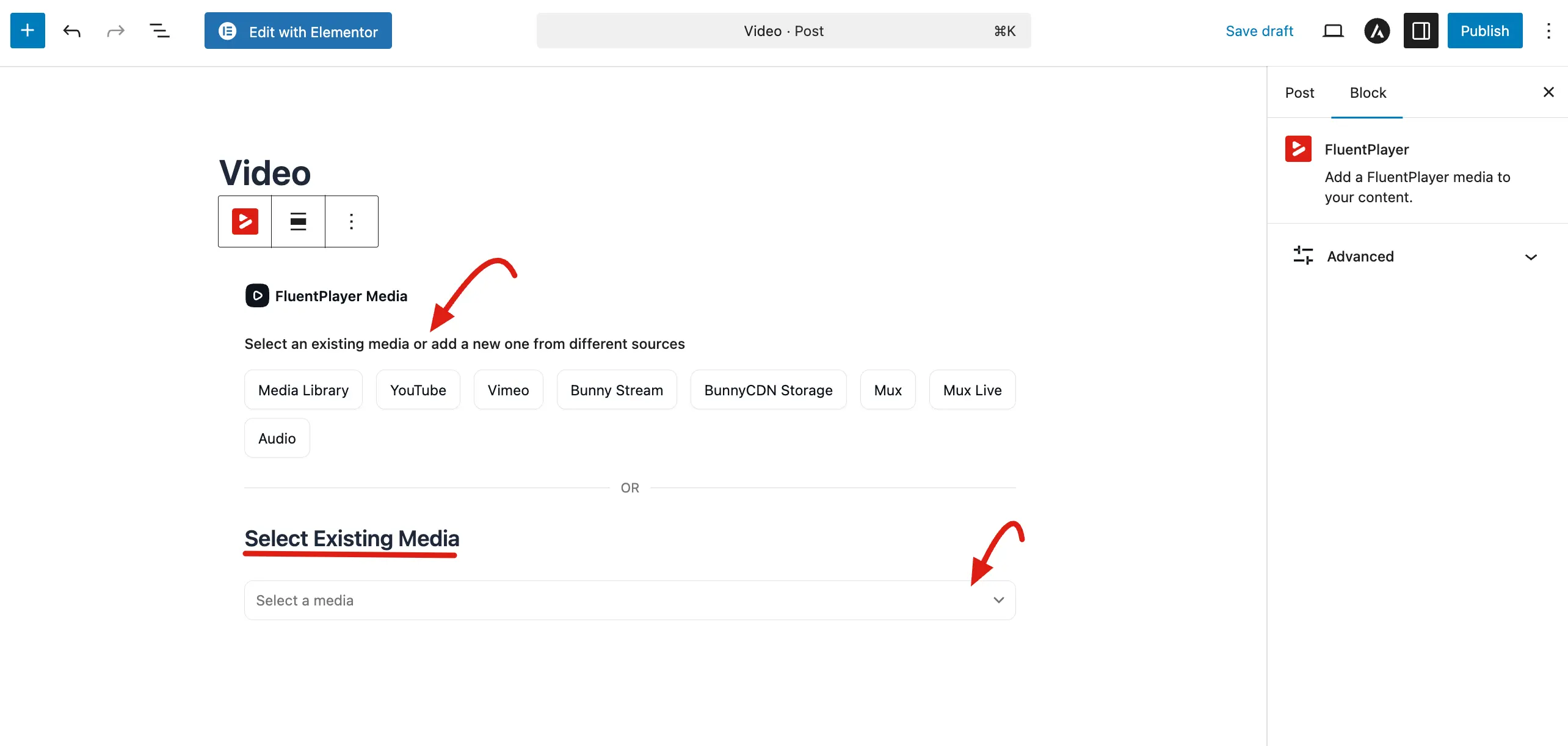
- Once the block appears, you have two choices:
- Select Existing Media: Use the dropdown menu to pick a video you have already created.
- Add New Media: Choose a source button (like YouTube, Vimeo, or Media Library) to add a fresh video.
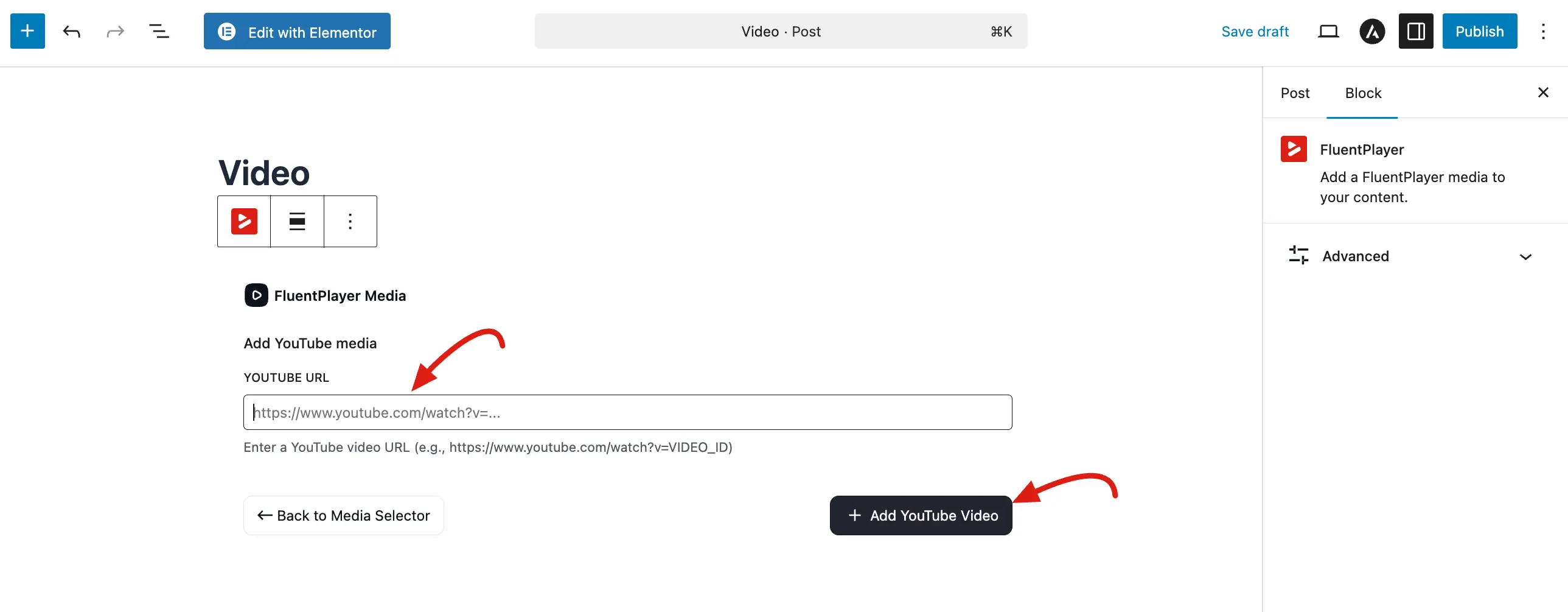
- If adding a new source, paste your link (e.g., a YouTube URL) and click the Add Video button.
Available Video Sources
When you insert a new block, you can choose from several high-performance sources. Here, you will get offer one-click source buttons. In FluentPlayer Pro these commonly include:
- Media Library: Pick a video file already uploaded to your WordPress site.
- YouTube / Vimeo: Simply paste a link from these platforms.
- Bunny Stream / Storage (Pro): Connect to your Bunny.net account for fast global delivery.
- Mux / Mux Live (Pro): Use Mux for professional streaming and live broadcasts.
- Audio: Use this for podcasts or voice only files.
Availability depends on your plan and Settings → Storage integrations. See Video Sources for details on each option.
Dedicated Media Editor vs Normal Post
| Context | What you see |
|---|---|
| FluentPlayer → Media (Add Media / edit media) | A dedicated editing screen where only the FluentPlayer block is used to configure the video—not a full post with paragraphs and other blocks. The block is locked. |
| Post or page | Standard block editor; FluentPlayer is one block among others. |
In both cases, configuration uses the same right sidebar (Media and Block tabs).
Deep Dive: Every Block Sidebar Panel
When the block is selected, a Block tab will appear in the right hand sidebar. This is where you can fine tune every part of your player. For each panel (Branding, General settings, Preset, Chapters, overlays, layers, timed content, multi language, subtitles, timestamp links, Advanced) lives here:
FluentPlayer Block & Media Editor
Playlist Block
Alongside the FluentPlayer block, FluentPlayer also provides a FluentPlayer Playlist Gutenberg block. This lets you embed an entire playlist — a grouped collection of videos — directly into any post or page.
To use it:
- Click the (+) button in the block editor and search for "FluentPlayer Playlist" or "playlist".
- Select the block and pick your playlist from the dropdown (or enter the playlist ID).
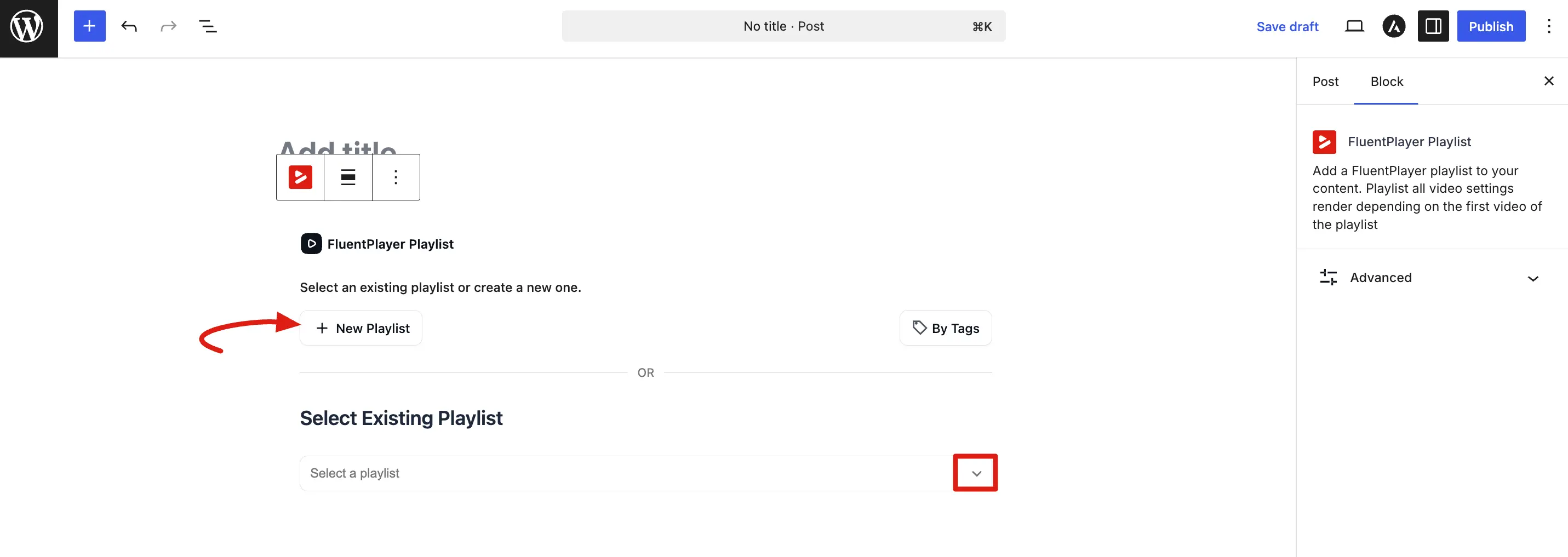
- Publish or Update the playlist renders on the front end with whichever layout (Standard, Grid, etc.) you configured.
Pro feature
The Playlist block requires FluentPlayer Pro.
For full details on creating playlists, choosing layouts, and embedding options, see the Playlists documentation.
Block vs Shortcode
| Block | Shortcode | |
|---|---|---|
| Editor | Block editor (or dedicated media screen) | Anywhere shortcodes run |
| Configuration | Full Block sidebar; see block & media editor | id only; options live on the media |
For shortcodes, see Embed with Shortcode.