

Appearance
Media Tags (Pro)
Media tags let you organize your video library with simple labels — like tutorial, webinar, or product-demo — so you can group related videos, filter your media list, and build tag-based playlists that update automatically.
Pro feature
Media tags require FluentPlayer Pro.
Why use tags?
- Find videos fast — Filter a large media library down to a single topic.
- Group without moving — A video can carry several tags at once, so it can belong to many groups.
- Power dynamic playlists — A tag-based playlist shows every video that shares a tag, and new videos with that tag appear automatically.
Tagging a media item
- Go to FluentPlayer → Media and open (or create) a media item.
- In the right-hand sidebar, select the Block tab and expand the Tags panel (it sits between Timed Content Area and Multi-Language).
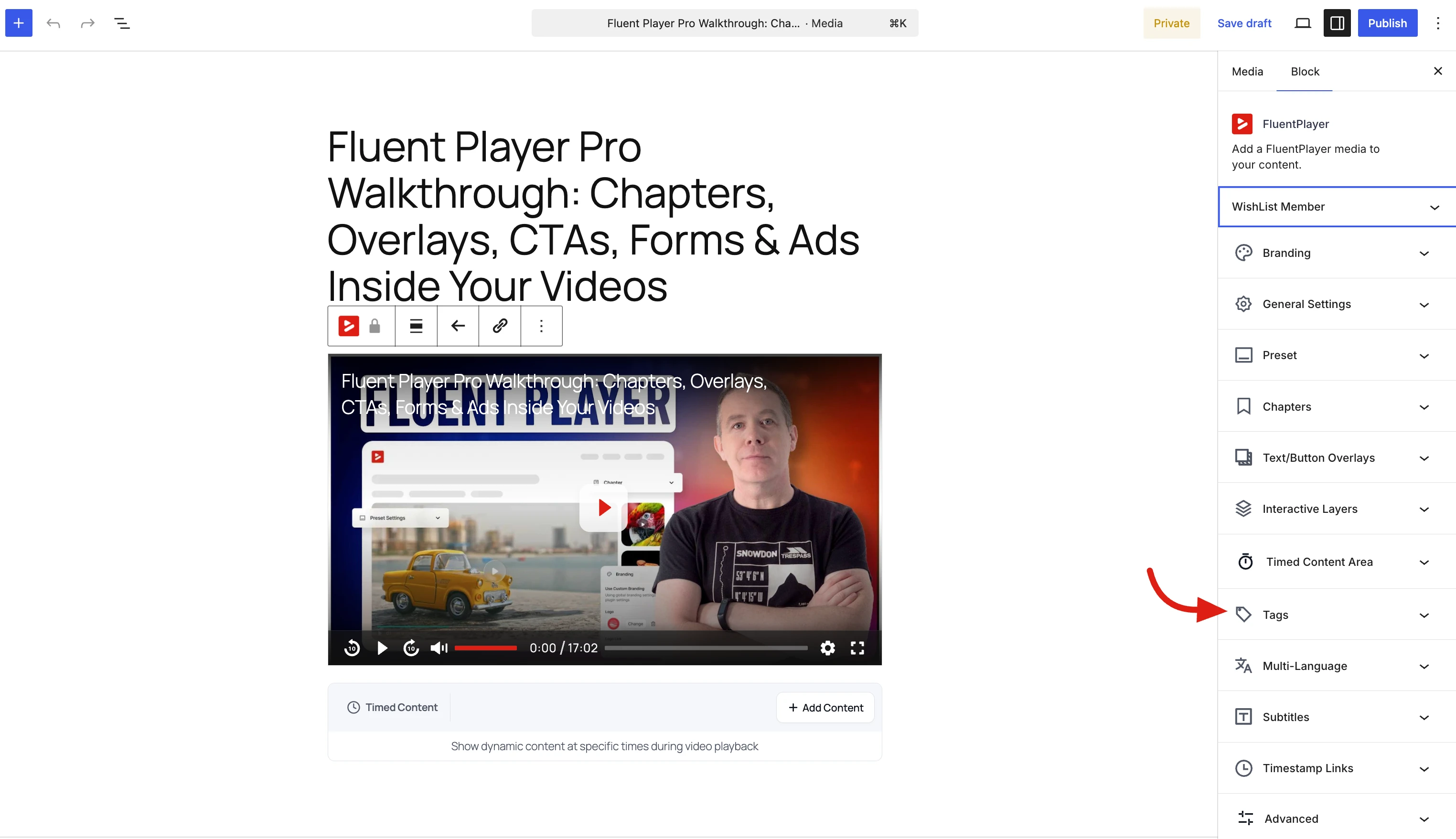
- Click the Tags field and start typing. Existing tags are suggested as you type — pick one from the list, or type a new name to create it. Each tag you add appears as a chip in the field.
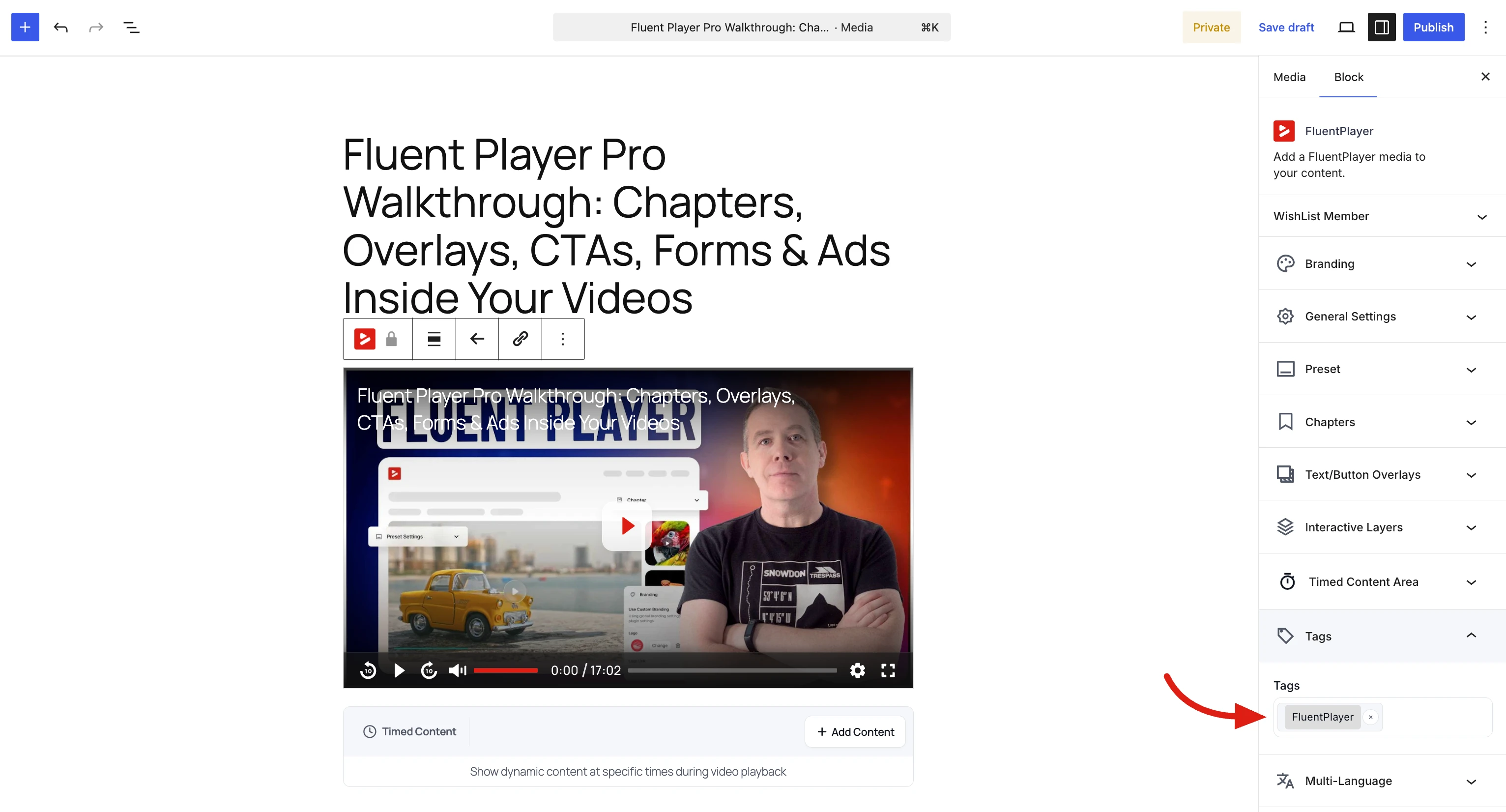
- Repeat to add as many tags as you need — a video can carry several at once.
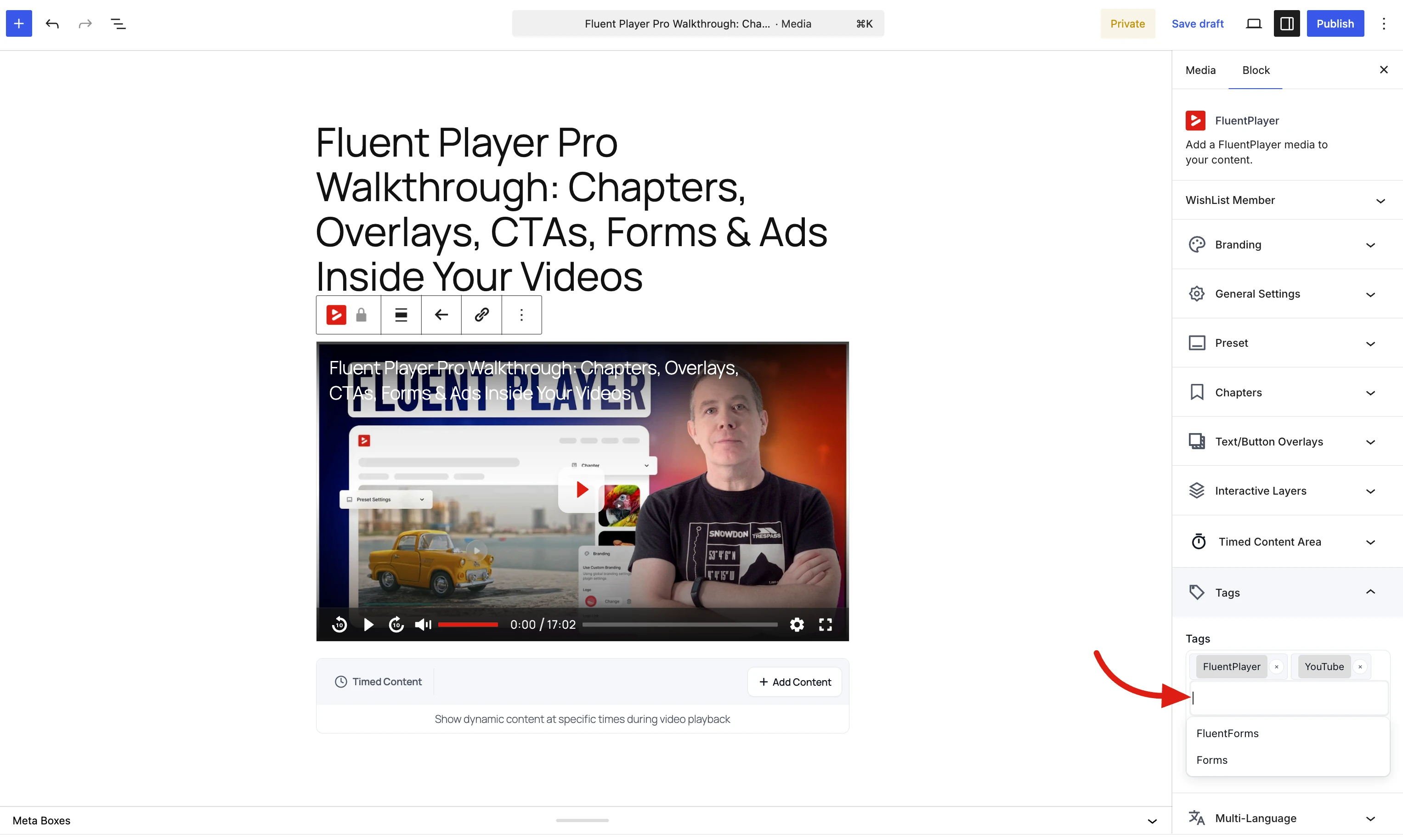
- Click Save draft / Publish (top right) to save your changes.
TIP
New tag names are created the first time you use them, so there is no separate "create tag" step. Reuse the suggested names to keep your tags tidy and consistent.
Removing a tag
To take a tag off a media item, open the Tags panel and click the × on the tag's chip, then save the media. This only removes the label from that video — it does not delete the videos or affect other media using the same tag.
Filtering the media list by tag
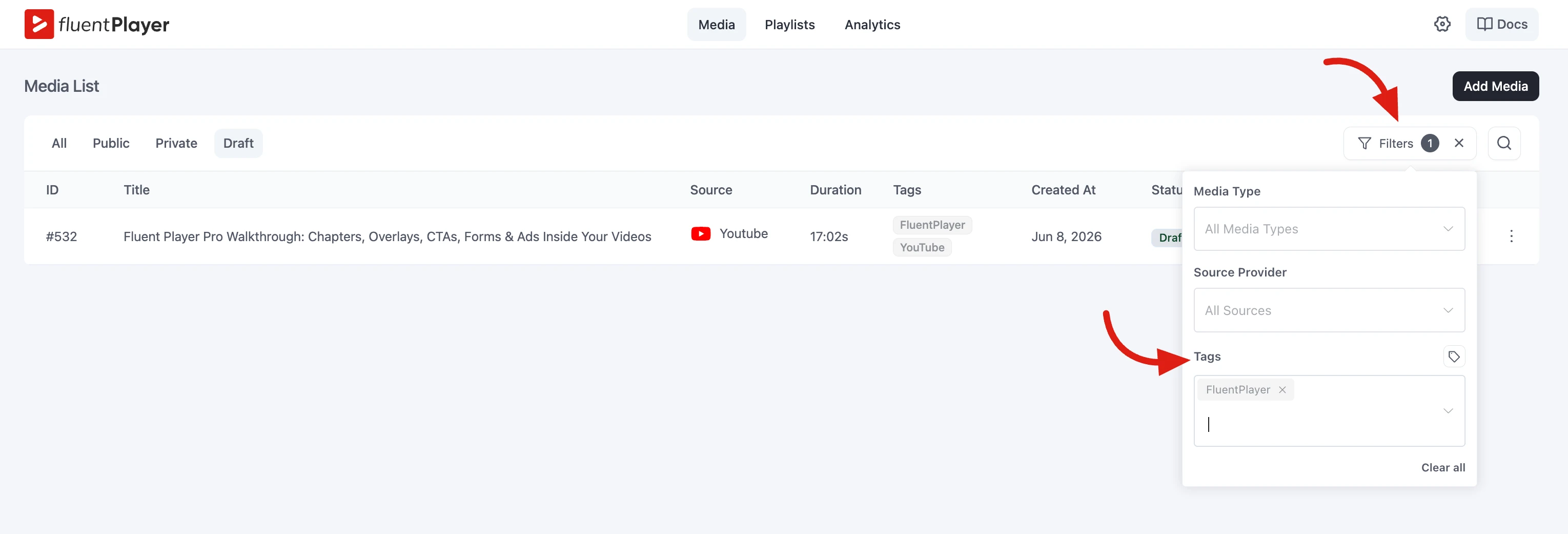
The FluentPlayer → Media list shows a Tags column so you can see each video's tags at a glance. To narrow the list, click the Filters button (top right, next to the search icon) and use the Tags filter — alongside Media Type and Source Provider — to focus on one group of videos at a time. A small badge on the Filters button shows how many filters are active.
Next: build a playlist from a tag
Once your media is tagged, you can create a playlist that pulls in every video with a given tag automatically. See Tag-Based Playlists.