

Appearance
Timestamp Links
Timestamp links are clickable text links that allow viewers to jump to a specific moment in your video. They are perfect for creating "Table of Contents" style navigation, allowing users to skip directly to the most relevant parts of longer content.
How It Works
When a viewer clicks a timestamp link, the FluentPlayer on that same page automatically seeks to the exact time defined in the link. To make this work, the Media ID in your timestamp link must match the ID of the player embedded on the page.
Finding the Shortcode
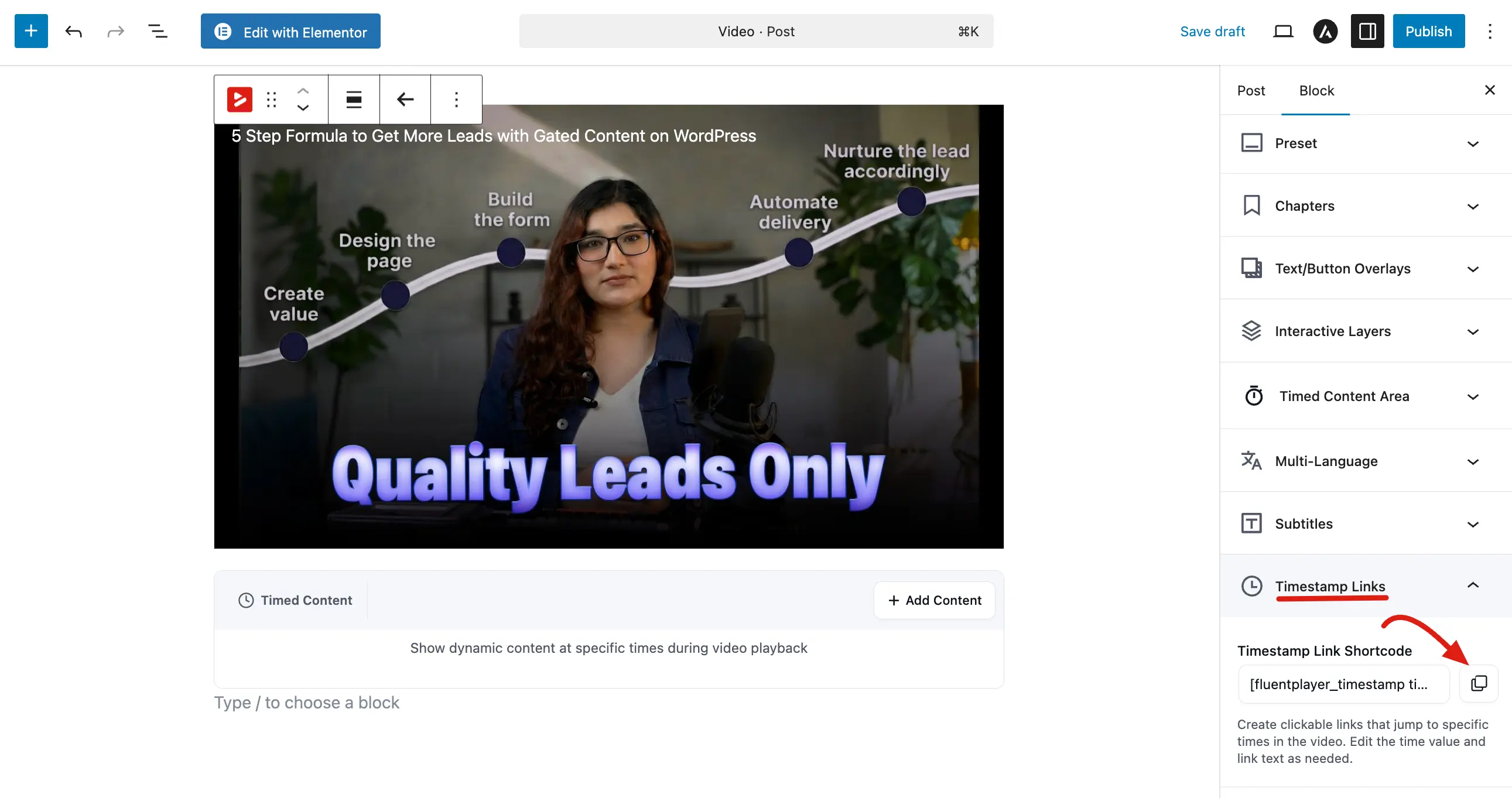
You can easily find and copy the base shortcode directly from the block editor:
- Select your FluentPlayer block in the WordPress editor.
- In the right hand sidebar, expand the Timestamp Links panel.
- You will see the Timestamp Link Shortcode box. Click the Copy icon next to it to grab the code.
[fluentplayer_timestamp time="1:30" media_id="129"]Jump to 1:30[/fluentplayer_timestamp]Configuration
To create a custom "Skip to" link, use the following shortcode format:
[fluentplayer_timestamp time="1:30" media_id="129"]Jump to 1:30[/fluentplayer_timestamp]- time="1:30": Enter the specific time to jump to in minutes:seconds or just seconds (e.g., 90 for 1:30).
- media_id="129": This must match the ID of the video player on your page.
- Link Text: Change "Jump to 1:30" to any text you like, such as "See the Results".
Example: Creating a Chapter List
Here is a complete example showing a video with a chapter list below it:
[fluentplayer id="129"] (Your main video)

## Chapters

[fluentplayer_timestamp time="0:00" media_id="129"]Introduction[/fluentplayer_timestamp]

[fluentplayer_timestamp time="2:15" media_id="129"]Setting up your account[/fluentplayer_timestamp]

[fluentplayer_timestamp time="5:30" media_id="129"]Creating your first project[/fluentplayer_timestamp]

[fluentplayer_timestamp time="8:45" media_id="129"]Publishing and sharing[/fluentplayer_timestamp]

[fluentplayer_timestamp time="11:00" media_id="129"]Next steps[/fluentplayer_timestamp]On the front end, each chapter title appears as a clickable link. When a viewer clicks "Creating your first project," the video jumps to 5 minutes and 30 seconds.
Important Rules
The player must be on the same page. The timestamp link controls a player by matching the
media_id. If there is no[fluentplayer id="129"](or equivalent[fluentmedia]) on the page, the link will not work.The
media_idmust match. Make sure themedia_idin the timestamp shortcode matches theidin the[fluentplayer]shortcode above.Time format. Use
minutes:seconds(for example,1:30) orhours:minutes:seconds(for example,1:05:30). You can also use just seconds (for example,90for one minute and thirty seconds).
Common Questions
Can I style the timestamp links?
Yes. The shortcode outputs a custom HTML element that you can target with CSS. By default, it looks like a regular link.
Can I use timestamp links with a playlist?
Timestamp links are designed for single media items. For playlists, you typically navigate between videos using the playlist interface instead.
Can I put the timestamp links in a sidebar or widget?
The timestamp link needs the player to be on the same page to work. If the player is in the main content and the link is in a sidebar widget, it should still work as long as they are rendered on the same page.
Related pages
- Chapters — built-in, in-player section markers viewers can click
- Shortcode Embed — the player shortcode these links control