

Appearance
Subtitles
Subtitles (also called captions) make your videos accessible to a wider audience, including non native speakers, viewers in noisy environments, or those with hearing impairments. FluentPlayer allows you to add and manage multiple subtitle tracks for any media item with ease.
Supported Formats
FluentPlayer supports these subtitle file formats:
- WebVTT (
.vtt): The most common web subtitle format. Recommended. - SRT (
.srt): A simple, widely used subtitle format.
TIP
If your subtitles are in a different format, use a free online converter to save them as a .vtt or .srt file before uploading.
How to Add Subtitles to a Video
- Go to FluentPlayer → Media and open the media you want to add subtitles to.
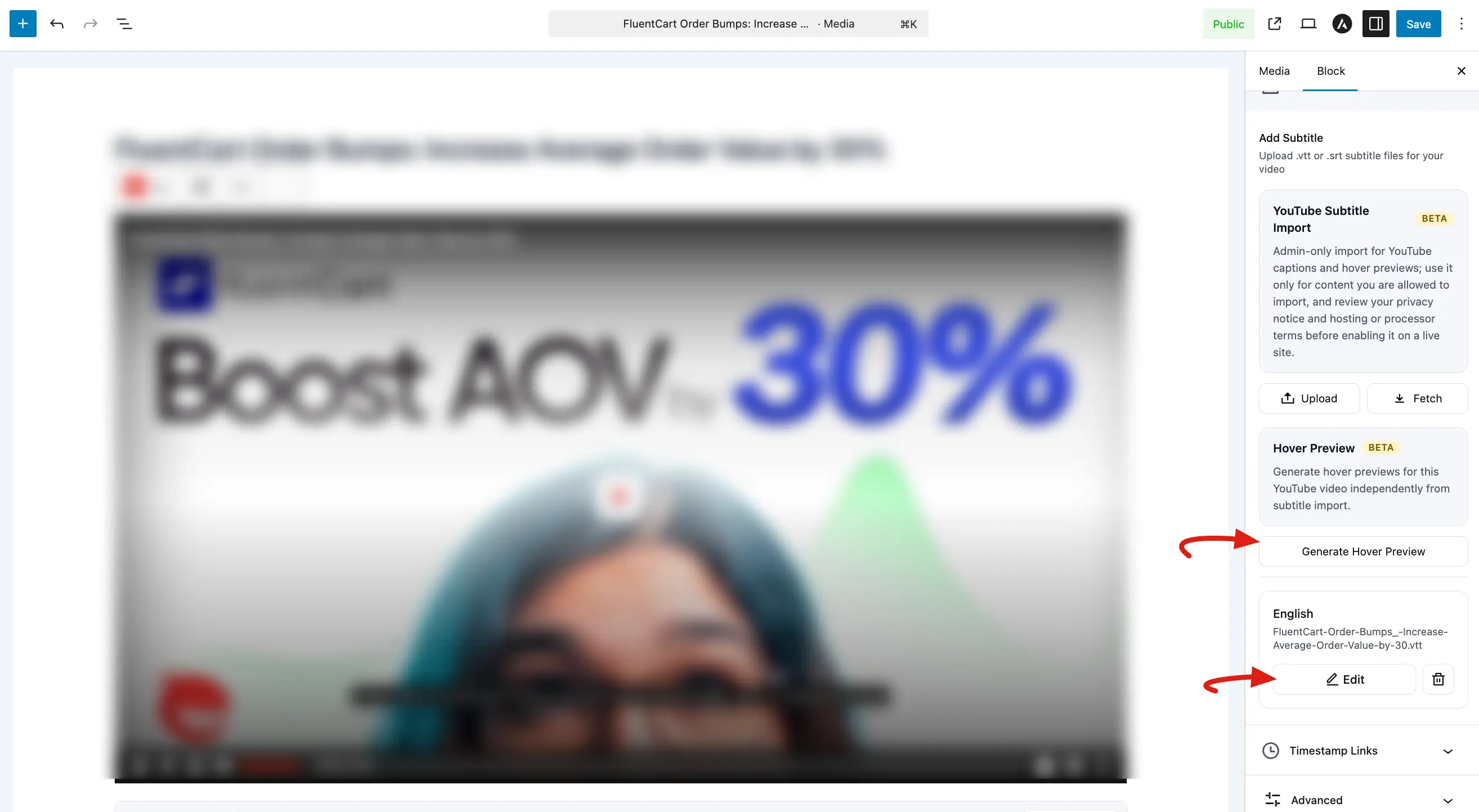
- In the right-hand sidebar, click on the Subtitles panel under the Block tab.
- Choose your upload method:
- Manual Upload: Click the Upload button to add your own
.vttor.srtsubtitle file from your computer. - YouTube Subtitle Import: For YouTube videos, you can use the Fetch button to automatically import existing captions from YouTube.
- Manual Upload: Click the Upload button to add your own
WARNING
YouTube subtitle import is an admin only feature. Ensure you have permission to use the content before importing.
- If prompted, set the language for the subtitle track (for example, English, Spanish, French).
- Click Update or Save to apply the changes.
Hosted subtitle service
YouTube subtitle import and hover-preview generation are handled by FluentPlayer's hosted subtitle service (default https://api.fluentplayer.com, a beta service), using license-signed requests — so these require FluentPlayer Pro with an active license.
Advanced Subtitle Features
- Hover Preview: You can click Generate Hover Preview to create a preview of the YouTube video independently from the main subtitle import.
- Managing Tracks: You can add multiple subtitle tracks for different languages.Once added, subtitle tracks appear in a list where you can click Edit to modify them or the Trash icon to remove them.
- Captions Toggle: Viewers can switch between them using the captions toggle on the control bar and, when the Settings menu is enabled, the Captions entry inside that menu see Creating Custom Presets.
Removing Subtitles
- Open the media in the editor.
- In the subtitles section, remove the track you no longer need.
- Save the media.
Styling Captions
You can change how captions look on screen, including font size, text color, and background color. These settings are part of the Preset or can be customized per media item in the Branding & Appearance section. See Branding & Appearance for details.
Adding subtitles is a simple yet powerful way to make your content more professional and inclusive. By using the Subtitles panel in FluentPlayer, you ensure that your message reaches every viewer, regardless of their language or environment.